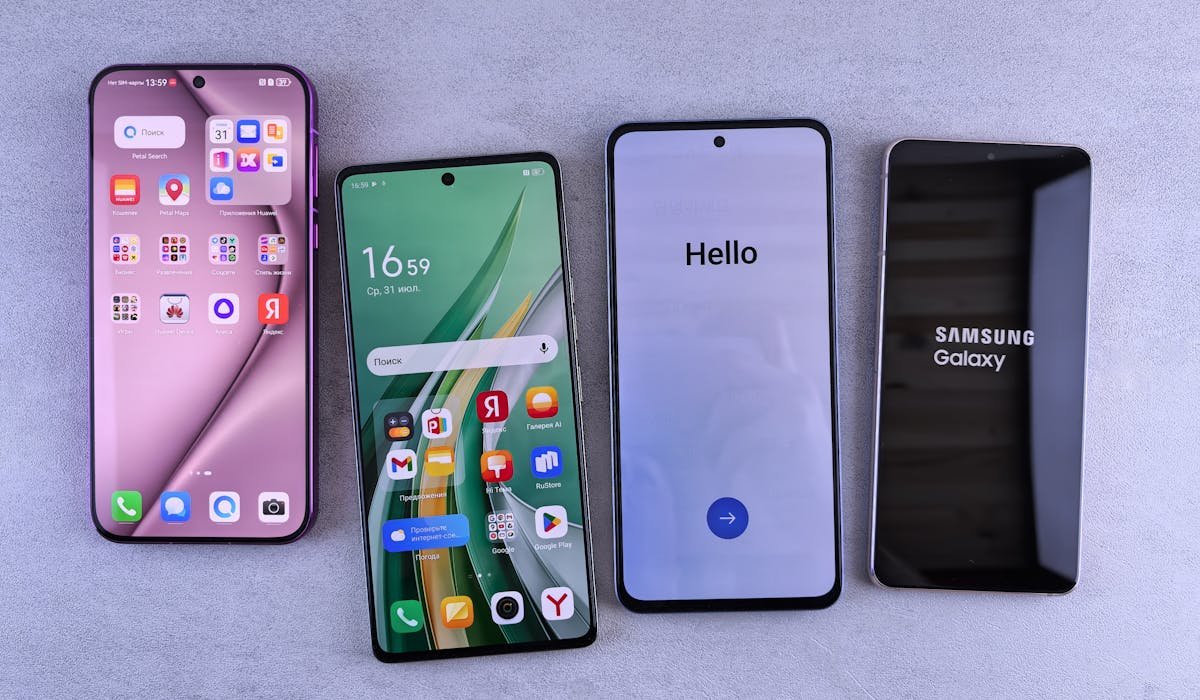
Bixby is Samsung's assistant. Nobody asked for it. Yet it's on every Galaxy phone, and it's often the default when you press the power button or specific shortcuts. Disabling it makes the phone way more usable.
There are several places Bixby lives. You need to disable each one separately.
Stop Bixby from activating on the side button
On Galaxy S10 and newer, the side button (formerly called Bixby button on older models) defaults to launching Bixby. Change that:
- Open Settings
- Tap Advanced features
- Tap Side key
- Under Press and hold, pick Power off menu
Now long-pressing the side button opens the power menu like a normal phone, not Bixby. You can also customize what happens on double-press here. Set it to open the camera or any app.
Turn off Bixby Routines
Samsung uses Bixby Routines to suggest automations. If you don't use them, turn them off. Open Settings, scroll to Modes and Routines (or find Bixby Routines on older phones).
Disable any routines you didn't create. Some come pre-loaded. Toggle them off so they stop suggesting and running in the background.
Disable Bixby Voice
Bixby Voice listens for "Hi Bixby". Disabling it stops the listening. Open the Bixby app (yes you have to open it). Tap the menu icon, then Settings.
Find Voice wake-up and toggle it off. The phone stops listening for the wake word. Battery improves slightly too.
Hide Bixby Home page
The leftmost home screen on older Galaxy phones used to be a Bixby Home page with news and suggestions. Get rid of it:
- Long-press anywhere on the home screen
- Swipe right to the leftmost page
- Toggle off Bixby Home or Samsung Free at the top
Page disappears. Your home screens slide normally now without a Bixby panel in the way.
Disable Bixby Vision
Bixby Vision is the camera AI feature that tries to identify objects. If you don't use it, turn it off. Open the camera app. Tap settings (gear icon). Find Scan QR Codes or Bixby Vision option. Toggle off.
The Bixby Vision shortcut disappears from the camera interface. You can still use Google Lens for the same kind of features (it's usually better anyway).
Disable the Bixby app entirely
You can't uninstall Bixby on Samsung phones, but you can disable the app. This stops it from running and showing notifications.
Long-press the Bixby app icon. Pick App info. Tap Disable. Confirm.
Bixby is now effectively gone from the phone. Some Samsung features that depended on it might break (rarely). If anything important stops working, you can re-enable from the same menu.
What you lose by disabling Bixby
For most users, nothing important. But some features rely on Bixby:
- Voice control while driving (use Google Assistant instead)
- Custom routines triggered by phrases (Routines work without Bixby Voice though)
- Some Smart Things voice control
- The Bixby shopping feature (nobody used it anyway)
Set Google Assistant as your default voice assistant in Settings > Apps > Default apps. Pick Google for digital assistant. Now "Hey Google" works as your voice assistant instead of Bixby.
Replace Bixby with Google Assistant
If you want voice control but not Bixby, set Google Assistant as the default. Hold the side button (after you set it to power menu) – then Google Assistant should activate via Hey Google wake word.
Open the Google app. Tap your profile picture. Settings > Google Assistant. Make sure Hey Google is enabled and Voice Match is set up. Way better experience than Bixby.
What Bixby annoyance are you trying to fix specifically? Tell me and I'll point to the exact toggle.