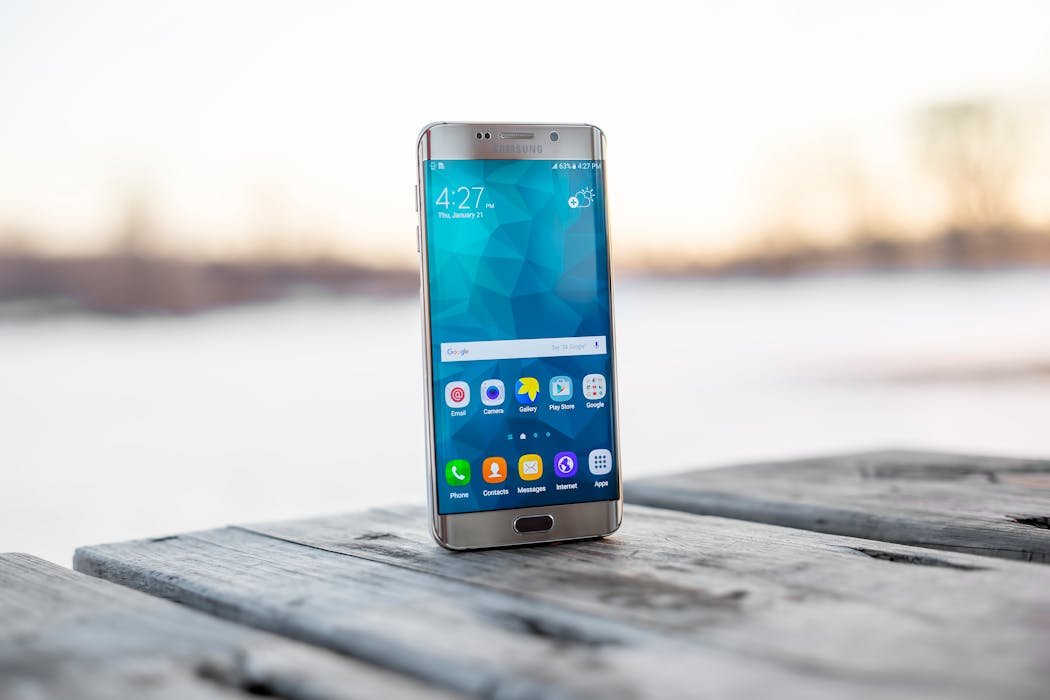
iPhone widgets let you put live information on your Home Screen and Lock Screen. Weather, calendar, battery levels, quick actions. Configured well, widgets save dozens of app launches per day. Most people add a few default widgets and call it done.
This guide walks through setting widgets up properly plus 10 of the best widgets for 2026 that go beyond the basics.
Add a widget to Home Screen
Long press an empty area of your Home Screen until icons wiggle. Tap the plus icon in the top left corner. The widget gallery opens showing every app that offers widgets.
Browse or search for an app. Tap the app to see its widget options. Most apps offer multiple widget sizes, Small, Medium, Large, Extra Large.
Pick a size by swiping. Tap Add Widget. The widget appears on your Home Screen ready to position.
Stack widgets for more in one spot
Drag a widget on top of another widget of the same size. They merge into a Smart Stack. Swipe between widgets in the stack to see different information without using more screen space.
iOS can also rotate widgets in a stack automatically based on time, location, or activity. Calendar widget shows during work hours, then switches to fitness during your gym time.
Lock Screen widgets
iOS 16+ added Lock Screen widgets. Long press your Lock Screen. Tap Customize. Tap Lock Screen. Tap one of the widget slots above or below the clock. Pick widgets.
Lock Screen widgets are smaller and information dense. Battery percentage, weather, calendar next event, fitness rings progress. Glance at lock screen for daily essentials.
Best 10 widgets to install
1. Weather. Apple's built in Weather widget. Hourly forecast at a glance. Add for your location plus any city you check often.
2. Calendar. Apple Calendar widget shows your next events. Medium size shows the full day, small shows just the next one.
3. Photos. Featured Photos widget rotates through your favorite photos. Memories and seasonal albums. Nice nostalgic touch on your Home Screen.
4. Reminders. Shows upcoming reminders due. Tap to mark complete or jump into the Reminders app.

5. Fantastical. Third party calendar with the best widget design. Shows calendar plus weather plus upcoming events together. Free version is widget compatible.
6. Things 3. Best task manager widget. Today, Upcoming, Anytime project breakdowns. $10 app but the widget alone justifies it.
7. Carrot Weather. Weather but with attitude. Configurable widget shows everything from hourly forecast to satellite map. Subscription required for premium widget customization.
8. Streaks. Habit tracker widget. Daily checkmarks for habits. Glance at Home Screen, mark complete, build streaks. $5 one time.
9. Widgetsmith. Custom widget builder. Make your own widgets with photos, text, custom data. Free with paid premium features.
10. Just Press Record. Voice recorder widget. Tap to start recording immediately. Best for capturing thoughts on the go.
Battery widget tip
The Batteries widget shows percentage for iPhone plus any connected accessories, AirPods, Apple Watch, Magic Keyboard. Add it to Home Screen.
Custom shortcut, long press the widget, pick Edit Widget. You can choose which devices to show. Useful if you have multiple Apple devices syncing.
Interactive widgets
iOS 17+ added interactive widgets. You can tap buttons in widgets to perform actions without opening the app. Mark reminders complete, control music playback, start timers.
Apps need to specifically support interactive widgets. Reminders, Music, Home, Shortcuts all do. More third party apps add support each iOS version.
Customize widget appearance
Long press any widget. Tap Edit Widget. Configuration depends on the widget, but most let you change what data to show, time range, color theme.
For aesthetic consistency, Widgetsmith lets you customize widget colors and fonts to match your wallpaper or theme. Some people spend hours fine tuning. Worth it if you care about visual harmony.
Widget combinations
My favorite Home Screen setup:
- Top, Weather (large) showing the day
- Middle, Calendar (medium) showing meetings, Tasks (medium) showing today list
- Bottom, Smart Stack with Photos, Batteries, Music, Reminders
This covers everything I need from one Home Screen page. The rest of my apps are in folders or App Library.
Apps without widgets but should
Some major apps still do not have great widgets, Instagram, TikTok, WhatsApp, Discord. If a widget is missing for an app you use heavily, look for third party alternatives.
For social media, widgets that show notification counts or recent activity exist but quality varies. Test before committing.
What widgets are on your Home Screen? Drop your setup in comments. Curious to see what people prioritize.