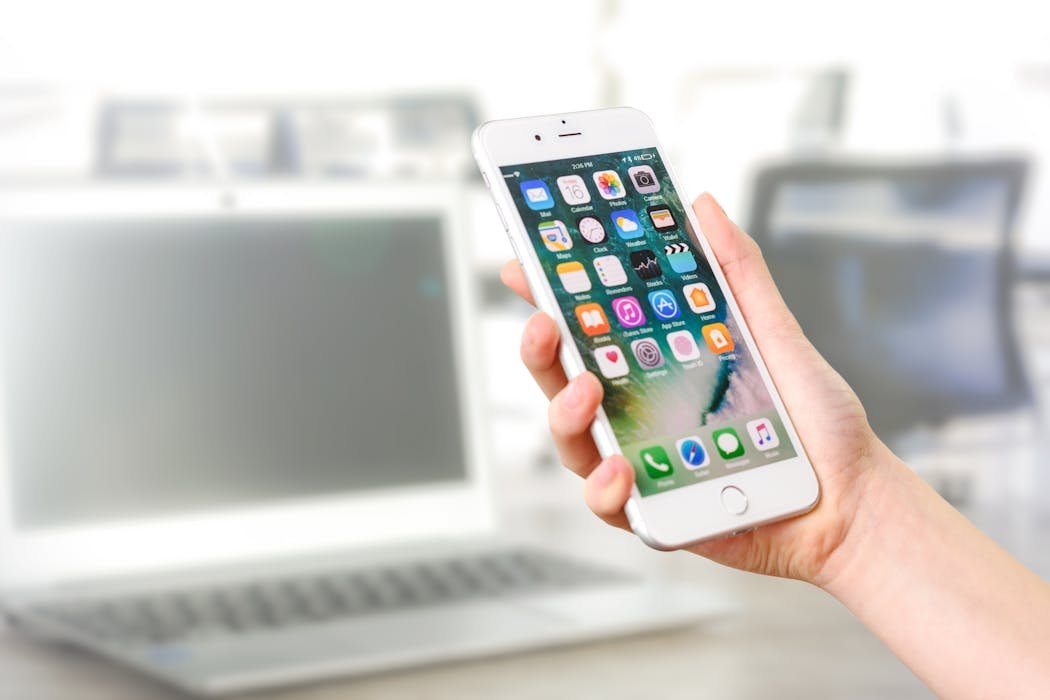
iPhone has hundreds of features that even daily users miss. Apple keeps adding small productivity tricks in each iOS update. I have collected 25 actually useful iPhone tips that are not the basic ones every article mentions.
These are the tips I actually use weekly. Skip the ones you already know, save the ones that look useful.
Camera and Photos tricks
1. Use volume buttons as shutter. Both physical volume buttons can take photos. Easier for grip than tapping screen.
2. Burst mode by holding volume up. Hold the volume up button (or shutter button) to capture burst of photos. Best for moving subjects.
3. Lift subject from photo. Long press a subject in any photo. iOS extracts it from the background. Drag to share or save as sticker.
4. Search Photos by content. The search bar in Photos finds images by what is in them, not just metadata. Search "dog" or "mountain" or "text" to find related photos.
5. Quick text from photos. Open any photo with text in it. Tap and hold the text. Select like regular text. Copy, translate, or look up.
Keyboard and typing
6. Trackpad mode. Long press the spacebar. Keyboard turns into a trackpad. Drag to position cursor precisely. Way better than tapping for cursor placement.
7. Shake to undo. Shake the iPhone. Pops up an undo option. Sounds dumb but it actually works for undoing typing or deletions.
8. Three finger gestures. Pinch with three fingers to copy. Spread to paste. Swipe left to undo. Swipe right to redo. Works in text editing everywhere.
9. Quick punctuation. Touch and hold any letter to see related characters or numbers. Holding period gives you ellipsis. Holding question mark gives upside down question mark.
10. Text replacement shortcuts. Settings then General then Keyboard then Text Replacement. Add shortcuts like "omw" that expands to "On my way!". Massive time saver.
Safari and browsing
11. Search a tab. Tap the tabs button. Swipe down on the tab view. Search across all open tabs.
12. Close all tabs at once. Long press the tabs button. Pick Close All Tabs. Faster than swiping each one.
13. Reopen recently closed tabs. Tap and hold the plus button on the tab view. List of recently closed tabs appears.
14. Reader Mode for any article. Tap the aA on the address bar. Pick Show Reader. Clean ad free version of the article.

System and shortcuts
15. Back tap. Settings then Accessibility then Touch then Back Tap. Set double tap or triple tap on the back of the iPhone to trigger an action. I have triple tap set to take a screenshot.
16. Lockscreen camera shortcut. Swipe left on the lock screen. Camera opens instantly. No unlock needed.
17. Quick flashlight. Press and hold the flashlight icon on the lock screen to adjust brightness. Four levels from dim to max.
18. Find your iPhone with Apple Watch. Swipe up on Watch face. Tap the iPhone icon. Tap the speaker icon. iPhone pings even if silent.
19. Force quit apps. Swipe up from the bottom and hold. App switcher appears. Swipe up on an app card to force quit.
Messages tricks
20. Edit sent messages. Long press a message you sent within the last 15 minutes. Tap Edit. Fix typos. Recipients see "Edited" label.
21. Unsend messages. Long press a message sent within last 2 minutes. Tap Undo Send. The message disappears from both sides.
22. Quick reply with effects. Type message. Press and hold the send arrow. Pick balloons, confetti, fireworks, or other effects.
23. Mark as unread. Swipe right on a message thread. Tap the indicator. Thread shows as unread again. Useful for reminders to reply later.
Hidden settings
24. Disable Apple Intelligence summaries. Settings then Notifications. Toggle off Summarize Previews. The AI summaries of notifications are often wrong or misleading.
25. Stop the iPhone from auto correcting names. Open Contacts. The names in your contacts get added to your dictionary automatically. iOS no longer autocorrects them to common words.
Bonus tip, customize the Action Button on iPhone 15 Pro and newer. Settings then Action Button. Set it to launch your most used app, trigger a Shortcut, or any function.
Which ones did you not know
Most people are surprised by Back Tap (15) and Text Replacement (10). Those alone save hours over a year of iPhone use.
The trackpad mode (6) is the one I show people most often. Cursor positioning on touchscreens is annoying. Long press spacebar fixes it.
Which of these did you not know about? Drop the tip number in comments. I love seeing which ones surprise people.