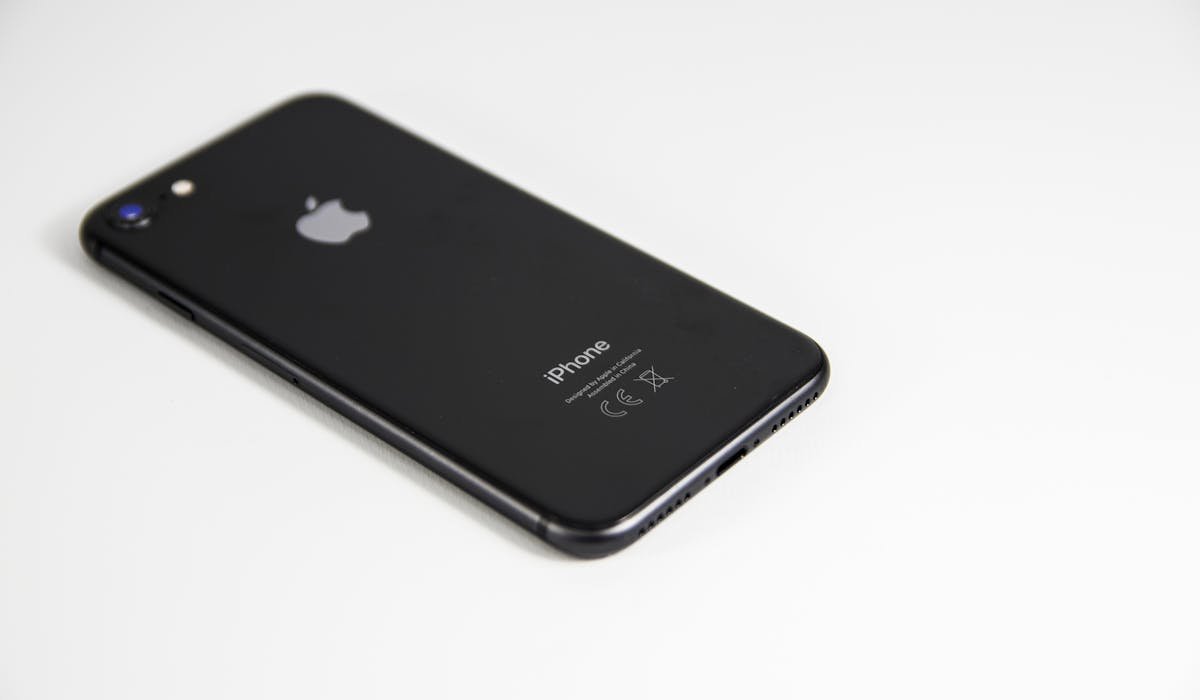
iPhones freeze sometimes. The screen stops responding to touch. Volume buttons don't work. Side button does nothing. You think the phone is bricked. It's not – you just need to do a force restart.
The exact button combo depends on your iPhone model. Here's every method.
iPhone 8 and newer (Face ID models)
This covers iPhone 8, X, XS, XR, 11, 12, 13, 14, 15, and 16 series. The force restart sequence:
- Press and release Volume Up
- Press and release Volume Down
- Press and hold the Side button until the Apple logo appears (about 10-15 seconds)
- Release when you see the logo
The phone boots normally. Anything that was frozen unfreezes. Don't hold the side button too short or too long – 10-15 seconds is the sweet spot.
iPhone 7 series
For iPhone 7 and 7 Plus specifically:
Hold Volume Down + Side button at the same time. Keep holding for about 10 seconds until the Apple logo appears. Release.
The iPhone 7 was the only model with a non-physical home button but no Face ID. Apple made a unique combo for it.
iPhone 6, 6s, SE 1st gen, and older
Old iPhones with the physical home button:
Hold the Home button + Sleep/Wake button (top or side, depending on size) at the same time. Keep holding for 10 seconds. Apple logo appears. Release.
This is the original force restart shortcut. Same on iPhone 5, 4, and any older model with a Home button.
Quick reference for all models
| Model | Force restart combo |
|---|---|
| iPhone 8 and newer | Vol Up > Vol Down > hold Side |
| iPhone 7 series | Vol Down + Side together |
| iPhone 6, 6s, SE 1st | Home + Sleep/Wake together |
| iPhone 5 and older | Home + Sleep/Wake together |
What to do if force restart fails
Sometimes even force restart doesn't work. The phone stays frozen. Try:
Drain the battery – Wait until the battery dies. The phone shuts off naturally. Charge it. It should boot normally.
Connect to a computer – Plug into a Mac (Finder) or PC (iTunes). Hold the force restart combo while connected. Recovery mode appears on the computer screen. You can update or restore from there.
Recovery mode for stubborn freezes
Recovery mode lets your computer reinstall iOS or restore from backup. Use it when force restart fails repeatedly.
- Connect iPhone to Mac or PC via cable
- Open Finder (Mac) or iTunes (PC)
- Do the force restart for your model but keep holding past the Apple logo
- Wait for the Recovery Mode screen on the iPhone (computer/cable icon)
- The computer pops up with options – Update or Restore
Update reinstalls iOS without erasing data. Try this first. Restore wipes the phone completely – last resort.
Why iPhone freezes happen
Common causes:
- An app crashed badly and took down iOS with it
- Memory ran out from too many apps in background
- iOS update install got interrupted
- Hardware issue with the touch screen or buttons
- Battery dropped to a very low state causing instability
If freezes happen often, look for patterns. Same app each time? Uninstall and reinstall it. Same time of day? Background process might be the cause.
When to suspect hardware
If freezes are frequent and software fixes (force restart, iOS update, factory reset) don't help, hardware is involved. Signs:
- Force restart works but the phone freezes again within hours
- Specific buttons feel inconsistent or wobbly
- Battery health is severely degraded
- Phone gets unusually hot before freezing
- Recent drop or water exposure
Apple Store appointment is the next step. AppleCare+ covers most hardware issues for cheap. Out-of-warranty repairs are expensive but usually the phone is fixable.
What model of iPhone do you have and what was happening when it froze? Tell me and I'll point to specifics.