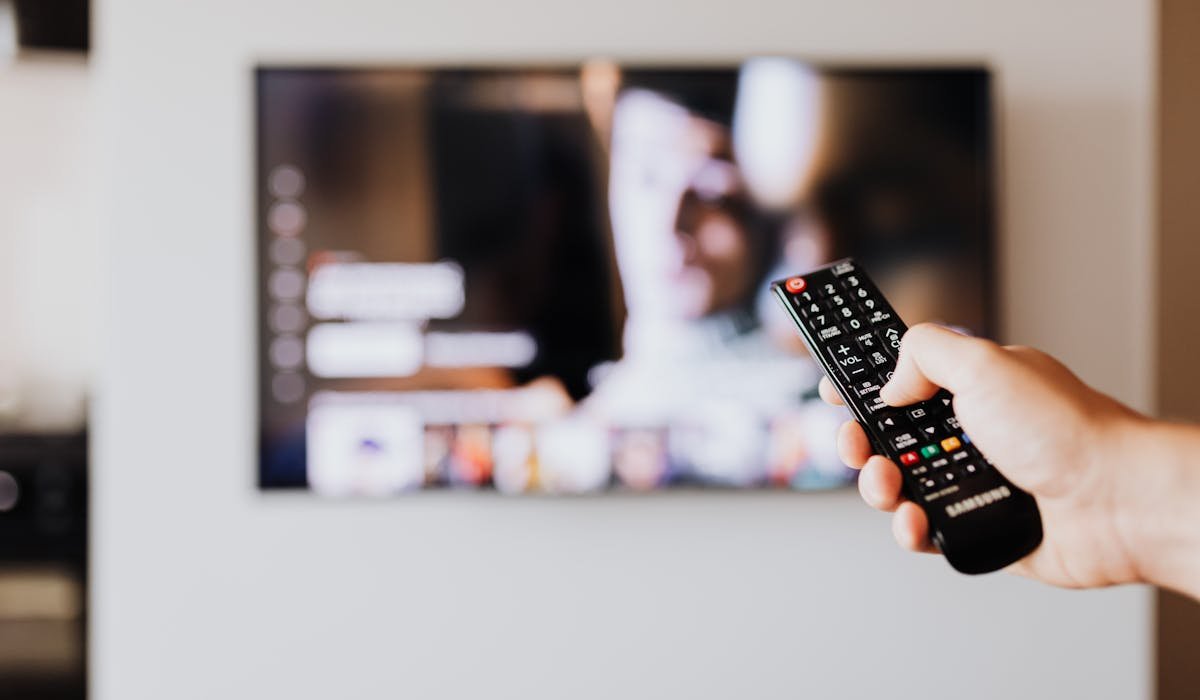
Setting up a Fire TV Stick is one of those tasks Amazon makes too easy until something goes wrong. Then the screen freezes on a setup step and you're stuck. I've set up about six of these for family members so here's what actually works.
The whole process takes about 10 minutes if everything goes smoothly. Closer to 20 if you need to update the software or fix a Wi-Fi issue.
Plug it in and pair the remote
Insert the Fire TV Stick into a free HDMI port on your TV. Plug the included USB cable into the stick and the power adapter into a wall outlet. Don't use the TV's USB port for power – it's usually not strong enough and the stick will randomly reboot.
Put the batteries in the remote and switch your TV to the right HDMI input. The setup screen should appear within 30 seconds. The remote pairs automatically if it's the one that came in the box. If the remote doesn't respond, hold the Home button for 10 seconds to force pair.
Connect to Wi-Fi
Pick your network from the list. Enter the password using the on-screen keyboard. If your Wi-Fi name doesn't show up, scroll to the bottom and tap Join Other Network. Type the network name (SSID) manually.
2.4 GHz is more compatible than 5 GHz on older Fire TV Sticks. The 4K Max model handles 5 GHz fine. If the stick refuses to connect, try the other band first before checking your password.
Sign into your Amazon account
Use the Amazon account you want apps and purchases tied to. If you ordered the Fire TV Stick from Amazon, it usually comes pre-registered to your account so you might just see "continue as [your name]" instead of a login screen.
Don't use a different family member's account by mistake. App purchases, Prime Video history, and Alexa requests all go to whichever account is signed in. Easier to set it right once than untangle it later.
Customize what shows up at startup
Fire TV asks if you want to enable parental controls. Skip unless you actually need them. The next screen shows recommended apps – Netflix, Hulu, Disney+, etc. Pick whichever you use. You can install more later from the Apps menu.
Skip the cable provider sign-in if you don't use cable. The Fire TV will keep asking sometimes if you don't configure it. Tap Skip for now on that screen.
Configure the remote to control TV power and volume
The Fire TV remote can control your TV's power and volume too, not just the stick. During setup it asks. If it didn't auto-detect your TV, this menu pops up:
- Pick your TV brand from the list
- Test the volume up button when prompted
- Confirm it worked or pick "No" to try a different code
- Repeat until the volume and power buttons work
Once paired, you don't need your TV remote for most things. Power on the stick, the TV powers on too via HDMI-CEC.
Install the apps you actually want
Press the Home button. Navigate to Find then Search or just say the app name into the Alexa button on the remote. Common ones to install right away:
- Netflix, Disney+, Hulu, Max, Prime Video
- YouTube and YouTube TV
- Spotify for background music
- Plex or Jellyfin if you have a home media server
- Silk Browser for casual web browsing
Sign into each one when you launch it. Most show a code on screen and you go to a website on your phone to enter it. Faster than typing your password with the remote.
Update the software
If you bought the stick a while ago, it might be running old software. Go to Settings, then My Fire TV, then About. Pick Install Update if one is available. Don't unplug while it's updating – the system can brick if interrupted.
The first update can take 10-15 minutes. After that, updates install automatically in the background overnight.
What model of Fire TV Stick are you setting up? Tell me and I'll mention any quirks specific to that model.