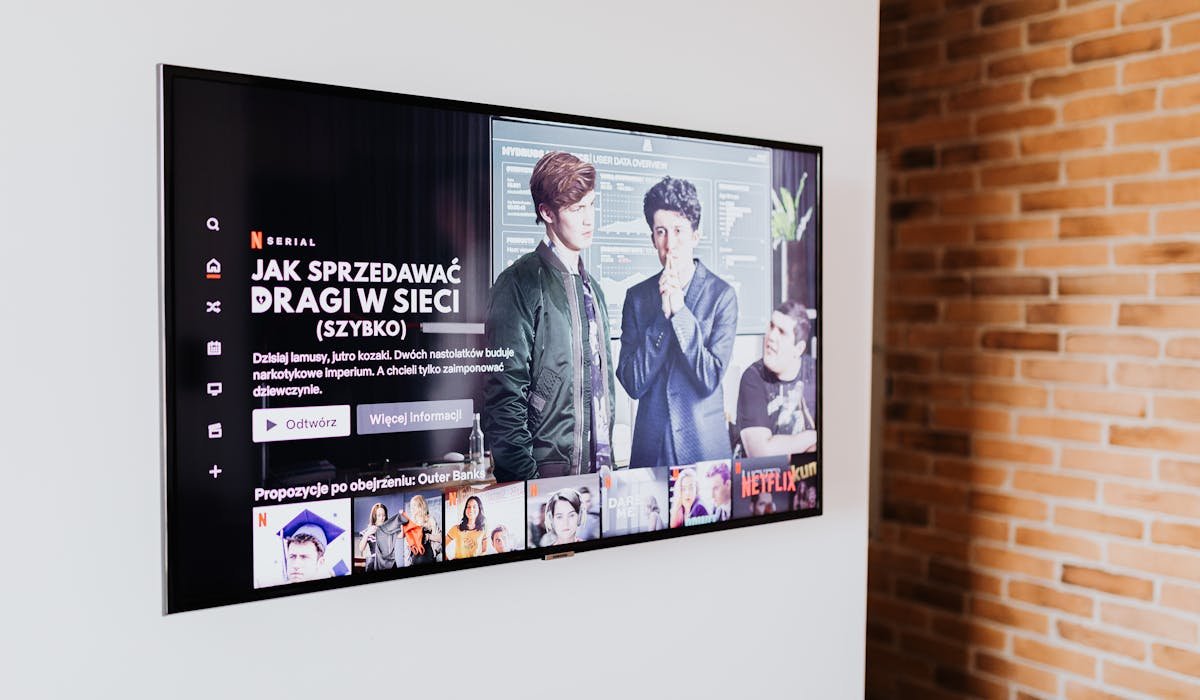
Netflix autoplay is the reason you've watched 9 episodes of a show you didn't even like. It just keeps going. The preview that plays when you hover over a title is the other annoying one. Both can be turned off in about 30 seconds.
The setting is per-profile, so each person on the account can have their own preference. Here's how to do it on every device.
Turn off autoplay on desktop
Go to netflix.com and sign in. Click your profile icon in the top right, then pick Account. Scroll down to find Profile & Parental Controls and click the arrow next to your profile name.
Look for Playback settings and click Change. You'll see two checkboxes:
- Autoplay next episode in a series on all devices
- Autoplay previews while browsing on all devices
Uncheck both. Click Save. Done. The change syncs to every device you use that profile on, so you don't need to repeat this on your phone or TV.
Why mobile doesn't have this setting
The Netflix mobile app doesn't show the autoplay toggle anywhere. The setting is account-level only and managed through the website. Some people search forever in the mobile app looking for it. Don't bother – just open Netflix in your phone's browser and follow the desktop steps.
Once you change it on the website, the mobile app respects the setting too. They share the same backend profile data.
What if the option isn't showing?
Sometimes the Playback settings section doesn't appear on certain plans or for kids' profiles. Two common reasons:
- You're on a kids' profile (those have locked playback rules)
- You're using a downgraded plan that doesn't allow customization
- Your browser is logged into a different account than you think
- Netflix is rolling out a UI change in your region
Switch to the main profile, log out and back in, or try a different browser. The setting always shows up for adult profiles on standard or premium plans.
Stop autoplay on smart TVs
Smart TV apps don't have a settings menu for autoplay either. Same rule applies – you need to change it on the Netflix website using a phone or laptop. The change pushes to your TV next time you open the app.
Roku, Fire TV, Apple TV, smart TVs from Samsung or LG, all of them respect the website-level setting. Don't waste time looking in the TV interface.
Different option – mute autoplay only
If you don't mind the preview clips but hate the sound, you can mute them while browsing. The volume icon appears in the top-right corner of a preview when you hover over a title. Click it and previews stay silent. Way better than the loud trailer surprise.
This is a per-session thing though, not a permanent setting. Once you close Netflix, it resets to whatever your global autoplay preference is. So the website settings are still the real fix.
What was the show that auto-played you into a binge? Drop it in the comments. We all have one.