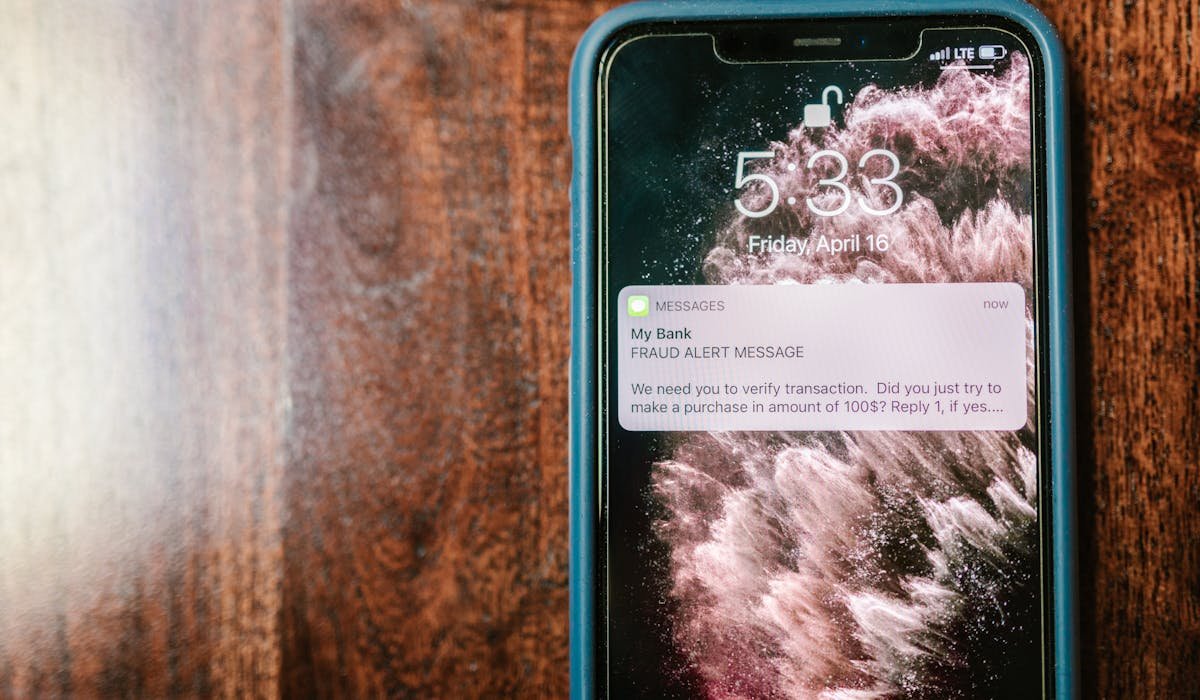
iMessage is one of those iPhone features people just expect to work. Most of the time it does. But sometimes you set up a new phone and the blue bubbles never show up. Texts go green. Group chats break. Everyone gets confused.
Enabling iMessage takes about 30 seconds when it works smoothly. Here's the full setup plus what to do if it gets stuck on activation.
Turn on iMessage in Settings
Open Settings and scroll until you find Apps (on iOS 18) or just Messages if you're on an older version. Tap it. At the top you'll see a toggle for iMessage. Flip it on.
The phone shows a message that says "Waiting for activation". This is normal. It can take anywhere from 30 seconds to about 10 minutes. During this time Apple is sending texts in the background to verify your phone number.
Sign in with your Apple ID
If iMessage activates but you can't send messages from your email address, you need to sign in. Go to Settings then Messages, tap Send & Receive, and sign in with your Apple ID.
Once signed in, you'll see your phone number and any verified email addresses listed. Check the ones you want people to reach you on. I keep mine on phone number only because email iMessage gets weird sometimes.
What to check before activation works
For iMessage to activate, a few things need to be in place. Quick checklist:
- Cellular data or Wi-Fi must be on and working
- Your phone number must be active on the SIM
- Date and Time set to Automatic (this trips up so many people)
- Latest iOS update installed
- Apple ID signed in correctly in Settings
The Date and Time one is the silent killer. If your phone is even slightly off, Apple's servers reject activation. Just set it to automatic and forget about it.
Activation stuck for hours?
Sometimes activation just hangs. The fix that almost always works for me – toggle iMessage off, restart the phone, then toggle it back on. Make sure airplane mode is off too. Try sending one normal SMS to test that your phone number works.
Also worth checking – your carrier needs to support iMessage. Most do, but some prepaid carriers block international SMS which iMessage uses to activate. If you're on a small carrier and nothing works, call them and ask if SMS to short codes is allowed on your plan.
Sending a message to test
Once everything is set up, find another iPhone user and send them a text. If the bubble shows up blue, iMessage is working. Green means it's falling back to SMS for some reason.
Common reasons texts go green even when iMessage is on – the other person turned off iMessage, they switched to Android, or your Wi-Fi dropped right when you hit send. None of these are problems with your setup.
Still stuck on activation? Drop the error message you're seeing in the comments and I'll help you trace it.