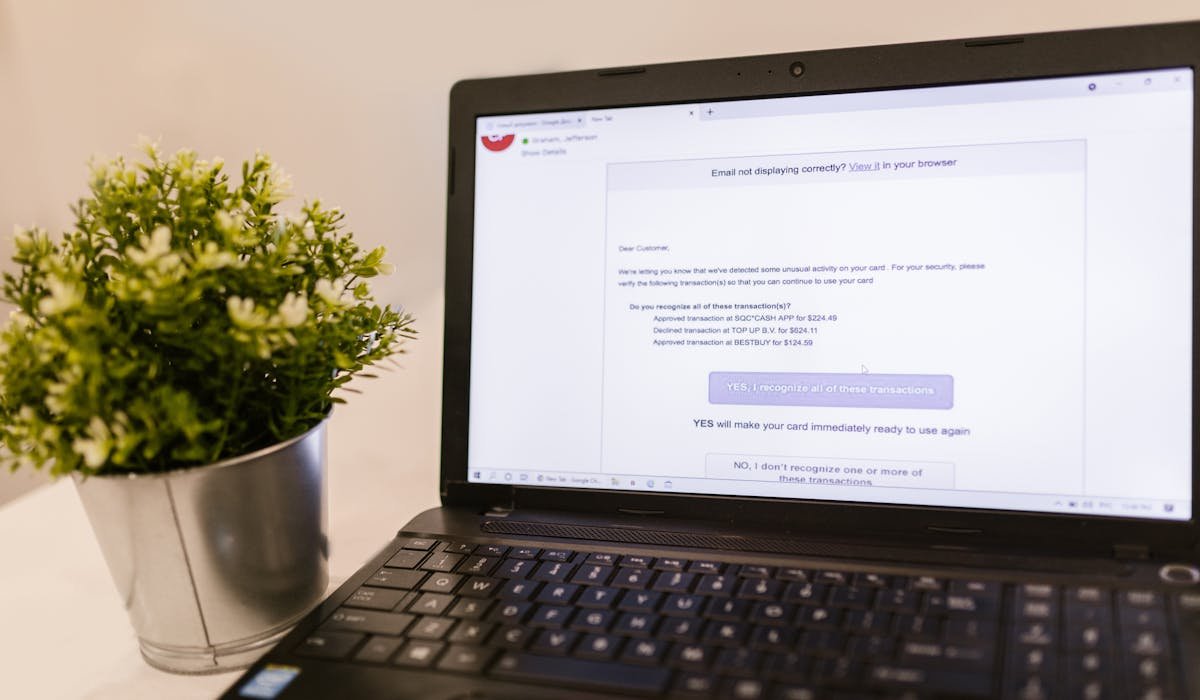
Spam in Gmail is annoying but Google has decent tools to fight it. My inbox went from 50 spam emails a day to 2 after applying these methods. Most are built into Gmail. None cost anything.
Start with the easy ones. Move to the harder ones if spam persists.
Report spam instead of deleting
The biggest mistake people make – they delete spam instead of reporting it. Gmail's spam filter learns from reports. When you delete spam, Gmail doesn't know it was spam.
Open the spam email. Click the Report spam button at the top (looks like an exclamation mark in a circle). Gmail moves it to spam and improves its filter.
Do this consistently for a few weeks. The spam filter gets much smarter. Spam volume drops noticeably.
Unsubscribe from legitimate-but-unwanted senders
Most "spam" is actually marketing emails from companies you once gave your address to. These have unsubscribe links by law.
Look for the Unsubscribe link Gmail puts at the top of marketing emails. Click it. Sometimes the sender's site loads. Sometimes Gmail handles it directly. Either way, future emails from them stop.
This is better than reporting as spam for legitimate senders. Reporting hurts their email reputation, which is unfair if they're a real business.
Block specific senders
For senders that don't respect unsubscribe, block them. Open one of their emails. Click the three-dot menu at the top right of the email. Pick Block [sender name].
Future emails from that exact address go straight to spam. They never hit your inbox. If they switch to a different email address from the same domain, block again.
Create filter rules
For more advanced blocking, use Gmail filters. Click the search bar at the top. Click the filter icon (sliders) on the right.
Set conditions like:
- From – specific sender domain (like @spamdomain.com)
- Subject contains specific words
- Has the words – phrases in the email body
- Doesn't have – exclusions
Click Create filter. Pick an action – Delete it, Mark as spam, or Skip Inbox (archive). Save.
Now any email matching that filter gets handled automatically. Powerful for cutting recurring spam patterns.
Use email aliases to track leaks
Gmail lets you create unlimited aliases using the plus sign. Your email is you@gmail.com. Use you+amazon@gmail.com when signing up for Amazon, you+twitter@gmail.com for Twitter, etc.
All emails still arrive in your main inbox. But you can see exactly which company sold your address if you start getting spam to a specific alias.
Filter rules can then auto-delete based on the alias once it starts getting spam.
Strip your email from data brokers
Data broker sites collect and sell your email address. Removing yourself from major ones cuts a lot of spam at the source. Services like DeleteMe and Optery automate this for $10-15/month.
Or do it manually – search for "data broker opt-out list" and walk through the major ones (Spokeo, BeenVerified, WhitePages, etc.) one by one. Takes a weekend but saves money.
Use bulk delete for spam folders
Click the Spam folder in Gmail's sidebar. There's a button at the top – Delete all spam messages now. Click it. All spam disappears.
Gmail auto-deletes spam after 30 days anyway. But manually clearing it helps the filter learn faster. Do this once a week.
Stop replying or engaging with spam
Spammers' systems track which emails get opens or replies. Engagement tells them your address is active and valuable. They share or sell it to more spammers.
Don't click unsubscribe on suspicious spam – it confirms your address is real. Just report as spam in Gmail. Don't reply to scam emails to mess with them. Don't open attachments "just to see".
Consider a forwarding service
For new signups, use a forwarding service like SimpleLogin or AnonAddy. They create burnable aliases that forward to your real address. If one gets spam, delete the alias and the spam stops.
Apple users get this built-in – Hide My Email is part of iCloud+. Create unique addresses for every signup, delete them when they start getting spam.
How much spam are you getting daily? Drop the number and I'll suggest which method would help most based on volume.