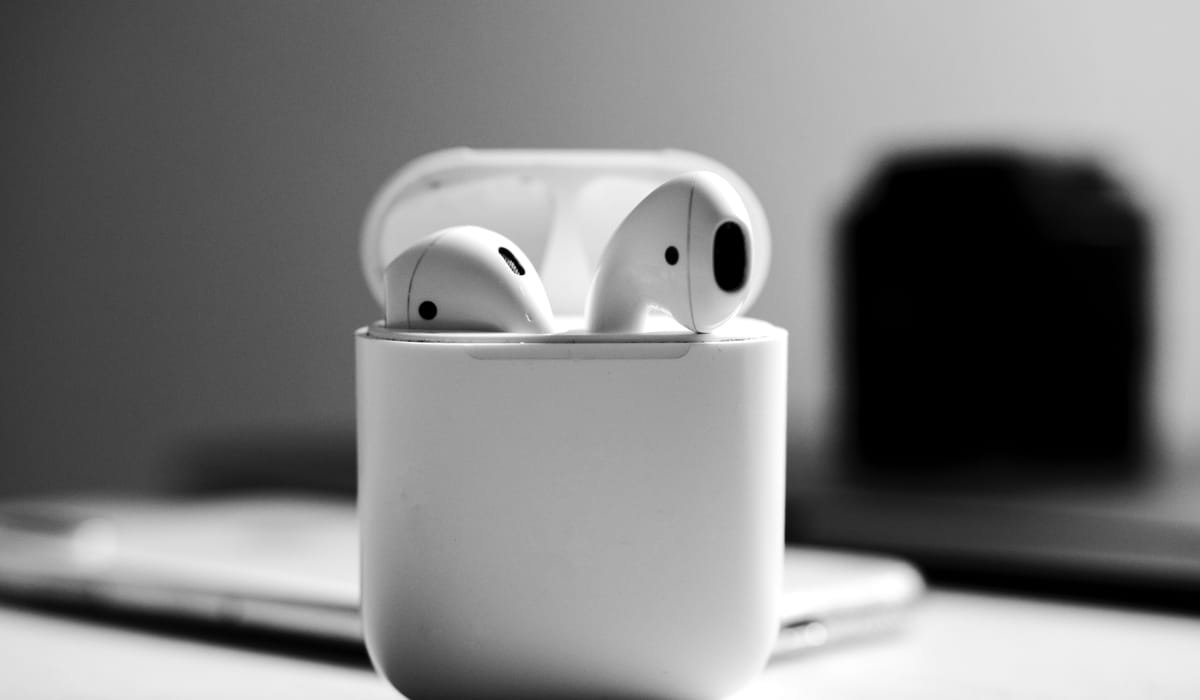
My AirPods stopped pairing two months ago. Bluetooth showed them as connected but no sound came through. The fix turned out to be simple but I tried six wrong things first. Here's the proper order to troubleshoot iPhone Bluetooth so you don't waste time like I did.
Most issues clear in the first three steps. Hardware problems are rare.
Toggle Bluetooth off and on
Yes, the obvious one. Swipe down from the top right of the screen to open Control Center. Tap the Bluetooth icon to turn it off. Wait 5 seconds. Tap it on again.
Try connecting your device. About 40% of Bluetooth issues clear right here. Don't use the Control Center toggle alone though – it just disconnects from your current devices but keeps Bluetooth on. The proper full toggle is in Settings then Bluetooth, switch the main toggle off and on.
Forget the device and re-pair
If a specific device won't connect even though Bluetooth is working, the pairing record on your iPhone is corrupted. Open Settings then Bluetooth. Find your device in the list and tap the i icon next to it.
Pick Forget This Device. Confirm. Now put your device in pairing mode and pair fresh as if it were new. This clears any settings mismatch that was blocking the connection.
Restart your iPhone
The classic fix. Hold the side button and a volume button until slide to power off appears. Slide. Wait 10 seconds. Hold the side button until the Apple logo appears.
After the restart, try Bluetooth again. The Bluetooth chip resets along with the rest of the phone and clears any stuck state.
Reset Network Settings
If you've forgotten and re-paired but the issue persists, the network stack itself might need a reset. Go to Settings then General then Transfer or Reset iPhone then Reset then Reset Network Settings.
This wipes saved Wi-Fi passwords, VPN settings, and all Bluetooth pairings. Annoying but it fixes deep-level Bluetooth issues. You'll need to re-pair every Bluetooth device after, and reconnect to Wi-Fi networks.
Update iOS
Bluetooth bugs are common in iOS releases. Apple usually patches them in point updates. Check Settings then General then Software Update and install any pending updates.
If you're running a beta iOS, Bluetooth issues are sometimes the price. Roll back to the stable version if everything else has failed.
Check if your device is the issue
Bluetooth is two-way. Sometimes the headphones, speaker, or car system is what's broken. Quick test – try pairing your iPhone with a different Bluetooth device. If that other device pairs fine, the original device is the problem.
For headphones and speakers, look for a reset option in their manual. AirPods reset by holding the button on the case for 15 seconds until the light flashes amber. Most other brands have a similar physical reset procedure.
Common device-specific issues
Some Bluetooth devices have known compatibility quirks with iPhones:
| Device type | Common issue |
|---|---|
| Car Bluetooth | Profile mismatch, delete from car settings too |
| Older Bluetooth speakers | Codec issues, sound stutters |
| Windows PCs | Bluetooth driver out of date |
| Bluetooth keyboards | Need re-pair after iOS major update |
| Smartwatches | Watch app needs update too |
For car Bluetooth specifically, you need to delete the pairing on both ends. Delete your iPhone from the car's Bluetooth menu and forget the car from your iPhone. Then pair fresh.
Hardware problem signs
If software fixes don't help, the Bluetooth antenna might be damaged. Signs:
- iPhone says no Bluetooth devices found even when one is in pairing mode 6 inches away
- Bluetooth turns on but immediately turns off
- You dropped the phone or got it wet recently
- Wi-Fi is also acting weird (they share an antenna)
Apple Store appointment is the answer if it's hardware. Out of warranty, expect $200+ for repair. AppleCare+ covers it cheaply.
Which Bluetooth device is giving you grief? Tell me the brand and model and I'll mention if it has a known iPhone issue.