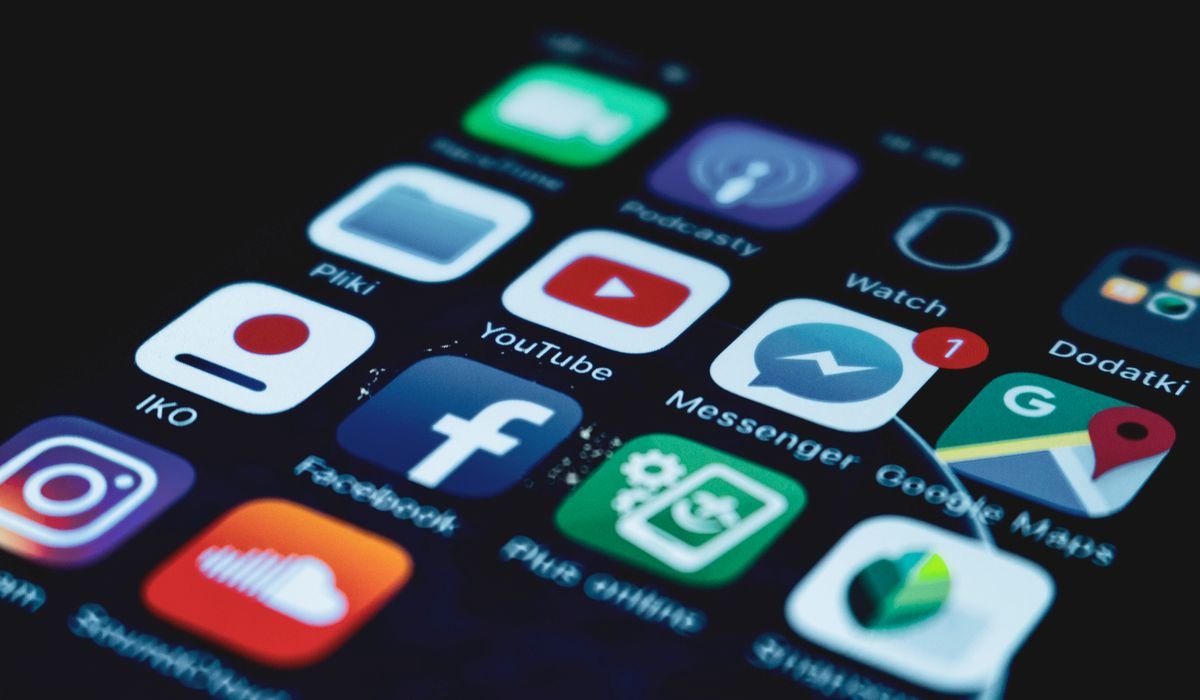
You deleted an app and now you want it back. Easy. iPhone keeps a record of every app you've ever downloaded under your Apple ID, even the ones the developer pulled from the store years ago. Getting them back takes seconds in most cases.
Here are the four ways to recover deleted apps depending on the situation.
Restore from your purchase history
Open the App Store. Tap your profile picture in the top right. Tap Purchased, then pick your name. Pick Not on this iPhone at the top.
You see every app you've ever installed but isn't currently on the phone. Find the one you want and tap the cloud icon next to it. It downloads and installs. Done.
Works even if the app was pulled from the App Store after you bought it. Apple keeps a record tied to your Apple ID forever.
Search the App Store directly
If the app is still available, just search for it in the App Store. Type the name in the search tab. If you've installed it before, the download button shows the cloud icon instead of Get. Tap it and it installs.
For paid apps you bought, no second charge. Apple recognizes you already own it.
Recover from the App Library
Wait – did you actually delete the app or just remove it from the Home Screen? These are different things. The App Library still has it.
Swipe left past your last Home Screen page to reach the App Library. Use the search bar at the top and type the app name. If it's there, long-press it and pick Add to Home Screen. The app comes back to your main pages.
This catches a lot of cases where people thought they deleted something but actually just moved it.
Restore from iCloud backup
If you backed up your iPhone to iCloud before deleting the app, the backup includes the app and its data. Restoring is heavy though – you have to erase the phone first. Only worth it if the app data (like game saves or notes) matters.
- Go to Settings then General then Transfer or Reset iPhone
- Pick Erase All Content and Settings
- Set up the phone fresh and pick Restore from iCloud Backup
- Sign in and pick the backup from before the deletion
- Let it restore (1-3 hours depending on backup size)
Only do this if app data is critical. For simple app recovery, the purchase history method is way faster and less destructive.
App is gone from the App Store entirely?
Sometimes apps get pulled by the developer or removed by Apple. The Purchased list still shows them. As long as you previously installed it, you can usually still redownload.
If the cloud icon doesn't respond when you tap it or you get an error, the app might no longer support your iOS version. Check the app's compatibility under the listing. Older apps that haven't been updated in years often stop working on modern iPhones.
Restore in-app purchases
After reinstalling, your in-app purchases (premium upgrades, removed ads, currency packs) need to be restored separately. Most apps have a Restore Purchases button in settings.
If you can't find it, look in the app's account or paywall screen. The button is usually small and tucked at the bottom. Tap it once and your purchases come back without paying again.
Family Sharing recovery
If the app was bought by another family member via Family Sharing, check their Purchased list instead of yours. Open the App Store, tap your profile, tap Purchased, and you should see a list of family members. Pick theirs and download from their list.
Works for any app bought by someone in your Family Sharing group with purchase sharing enabled.
Which app are you trying to bring back? Drop the name in comments. Some have weird recovery paths.