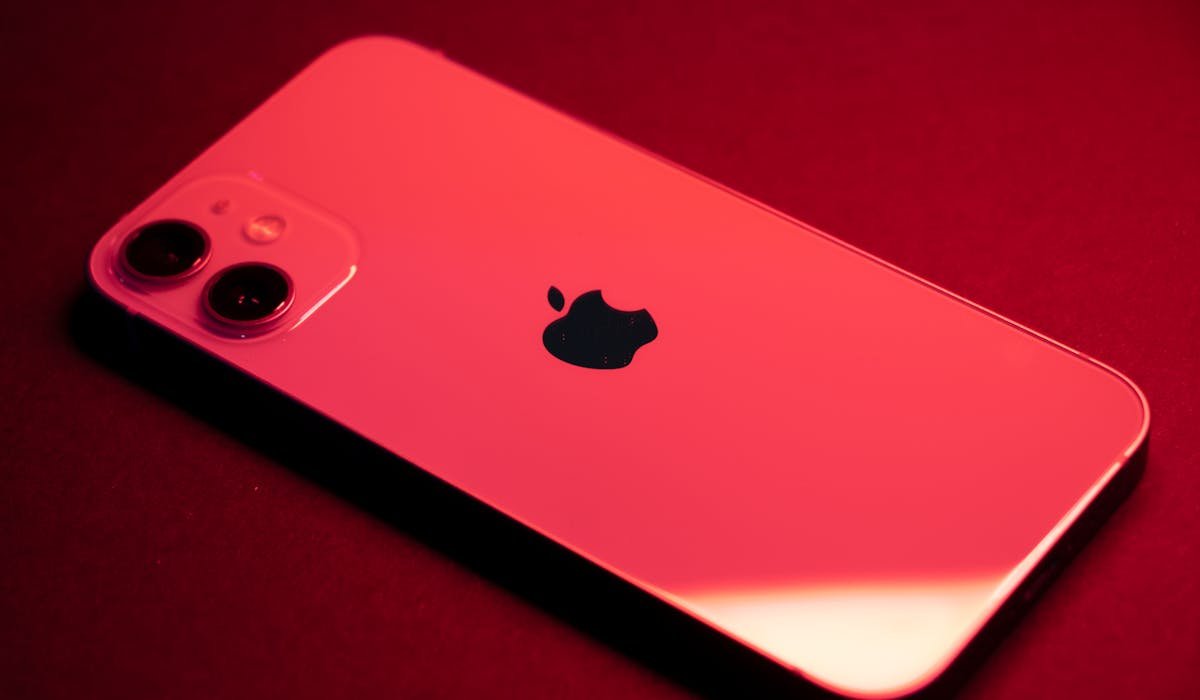
My iPhone camera died mid-vacation last year. Took 30 minutes of troubleshooting before I found the actual fix. Here are the 8 things that fix this issue, ranked by how often each one works based on what I've seen.
Start with the first fix and work down. Most cases are solved by step 1 or 2.
Force close the Camera app
Most camera freezes come from the Camera app getting stuck. Swipe up from the bottom of the screen and hold (or double-press the home button on older models) to open the App Switcher. Find Camera and swipe it up to close.
Open Camera again. Usually works on the first try. If not, move to the next step.
Restart your iPhone
The classic fix that solves about 60% of these issues. Hold the side button and either volume button until the slide to power off appears. Slide right. Wait 10 seconds. Hold the side button until the Apple logo appears.
Camera should work normally after the restart. If it's still showing a black screen or refusing to focus, the issue is deeper.
Check Camera permissions for third-party apps
If the camera works in the Camera app but not in Instagram, Snapchat, or another app, the app doesn't have permission. Open Settings, scroll to the app name, and tap it. Check that Camera is toggled on.
You can also go to Settings then Privacy & Security then Camera to see all apps with camera access in one place. Toggle off any that don't need it.
Turn off VoiceOver
This is a weird one but it works for some people. VoiceOver and certain accessibility features can interfere with the camera. Go to Settings then Accessibility then VoiceOver and make sure it's off.
Also check Reduce Motion and toggle it on if it's off. Some users report the camera black screen issue stops with this on. No idea why. Just try it.
Switch between front and rear camera
Open the Camera app. Tap the icon that flips between front and rear (the circular arrow icon). Sometimes one camera works while the other freezes. Quick way to confirm which lens is having the problem.
If only one camera is broken, the hardware might be damaged. If both are broken, it's probably software and the next fixes apply.
Update iOS
An outdated iOS version sometimes causes camera bugs that Apple fixes in patches. Go to Settings then General then Software Update. Install whatever's available.
Make sure you're on Wi-Fi and have at least 50% battery before starting. The update can take 20-30 minutes for major versions. Camera issues often clear after the update completes.
Reset all settings
If nothing else worked, this nuclear option resets all your iPhone settings without deleting your data. Go to Settings then General then Transfer or Reset iPhone then Reset then Reset All Settings.
Your photos, apps, and messages stay. But your Wi-Fi passwords, Bluetooth pairings, and preference toggles all go back to default. Worth it if the camera has been broken for days.
Hardware issue – when to give up and visit Apple
If you've tried everything and the camera still doesn't work, the lens or sensor is probably damaged. Signs of hardware problems:
- Camera lens has a visible crack or scratch
- The lens is loose or rattles when you shake the phone
- You dropped the iPhone right before the issue started
- Water exposure happened recently
- Only one specific lens (like the telephoto) is broken
Make an appointment at the Apple Store or contact AppleCare. Out-of-warranty camera repairs are usually $150-$400 depending on your model. AppleCare+ covers it for a small service fee.
Which fix worked for you, if any? Drop the step number in the comments and I'll keep this list ranked accurately.