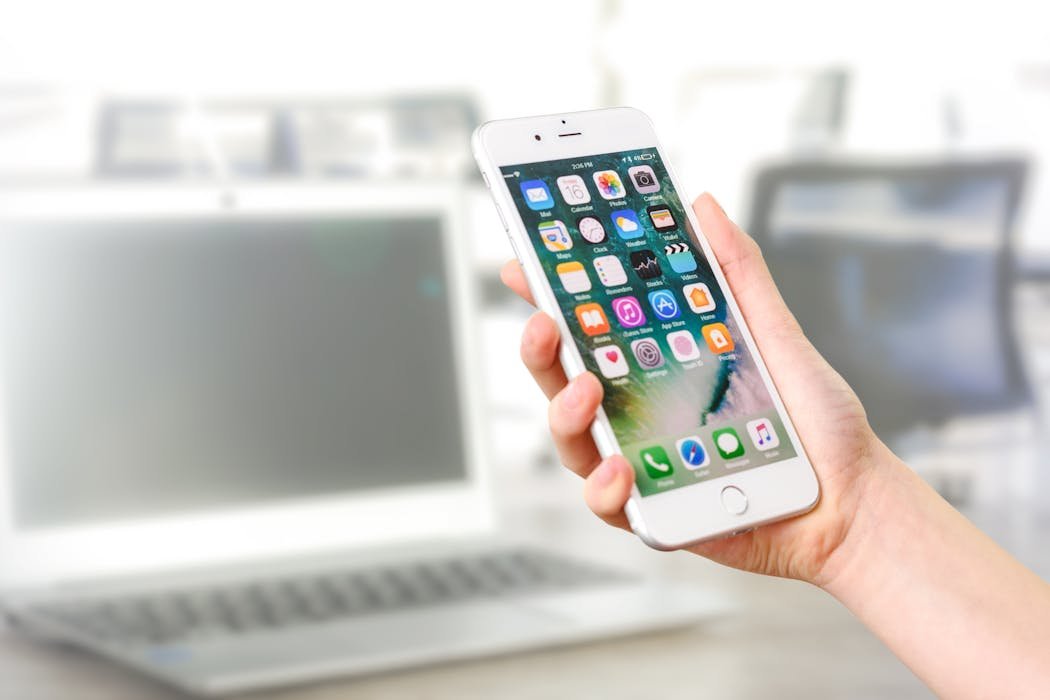
Apps hide on iPhone in more ways than people realize. Some are deliberately stashed by users wanting privacy, some get tucked away by iOS itself when you don't use them, and a few are hidden by parental controls. I've dug through every corner of iOS to map out where apps actually go when they disappear from your Home Screen.
If you can't find an app, this guide walks through every place it might be hiding. Whether you're trying to recover something you misplaced or you're checking what your kids have hidden on the family iPhone, all the locations are here.
Check the App Library first
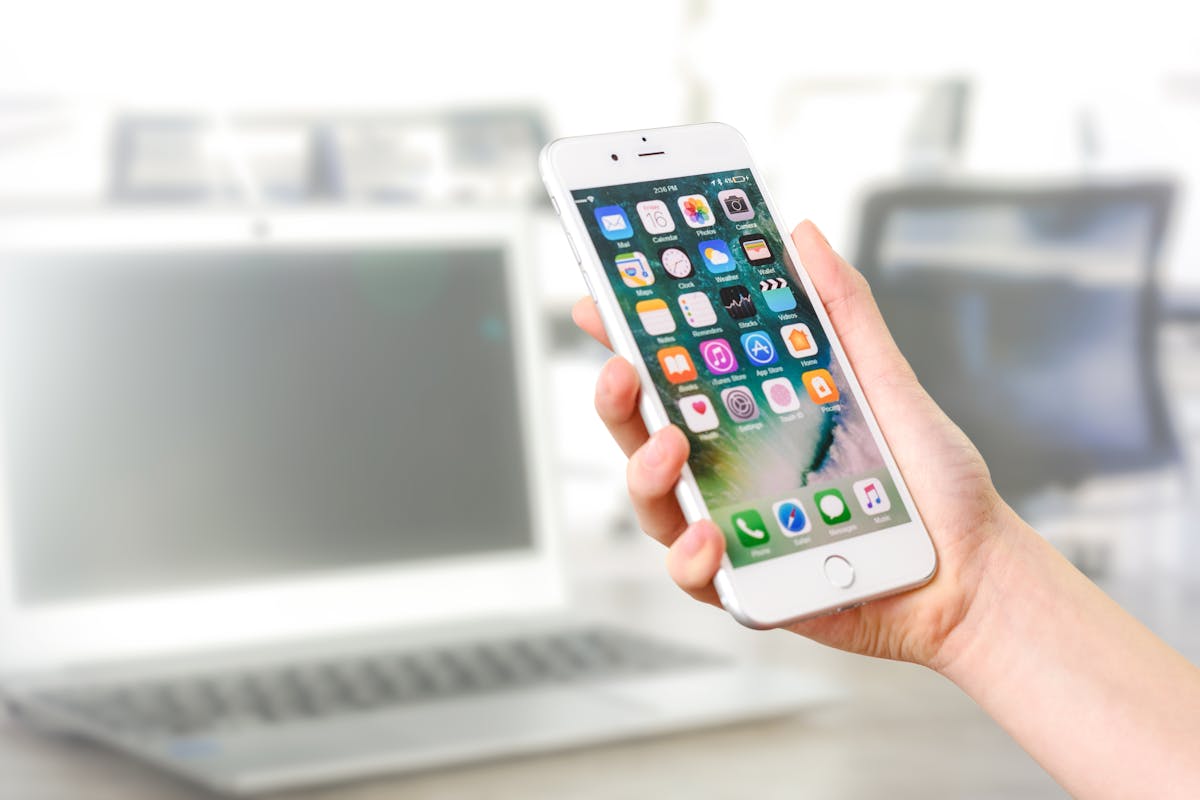
The App Library is the most common place apps go when they disappear. iOS lets you remove an app from your Home Screen without deleting it. The app stays installed but only lives in the App Library.
To get there, swipe left past your last Home Screen page. The App Library opens with apps organized into automatic categories like Social, Entertainment, Productivity. There's also a search bar at the top.
Use the search. Type the app name. If it's installed anywhere on the phone, it shows up. To put it back on your Home Screen, long press the icon, tap Add to Home Screen.
Check hidden Home Screen pages
iOS lets you hide entire Home Screen pages. Useful for hiding work apps during off hours or kids' games during school. To check what's hidden:
- Long press an empty area of any Home Screen page until icons wiggle
- Tap the row of dots near the bottom of the screen showing page positions
- A grid view shows every Home Screen page, including hidden ones
- Hidden pages have an unchecked circle below them
- Tap the circle to show that page again
Some apps might be on a hidden page. This catches a lot of cases where people think apps are deleted when they're just on a hidden page.
Check the iOS 18 Hidden Apps folder
iOS 18 added a proper hidden apps feature. Apps locked behind Face ID live in a special folder. To check:
Open the App Library by swiping past your last Home Screen page. Scroll all the way down. You see a Hidden folder at the bottom. Tap it, authenticate with Face ID. Any apps locked away show here.
If you suspect someone hid apps on a shared iPhone, this is the place to look. Without Face ID matching, they stay invisible.
Check Screen Time restrictions
Screen Time can hide apps entirely. If parental controls or focus modes are active, apps disappear from search and the Home Screen until restrictions are lifted.
Go to Settings then Screen Time then Content & Privacy Restrictions. Check the Allowed Apps section. Any app toggled off here is hidden. Toggle it back on and it reappears.
Also check Content Restrictions for apps blocked by age rating. iOS hides apps that don't meet the configured age threshold.

Search with Spotlight
Spotlight search finds apps even when they're tucked into folders or only in the App Library. Swipe down from the middle of any Home Screen page. The search bar appears. Type the app name.
If Spotlight finds it, you can launch it directly from the search results. If the app is on the phone but Spotlight can't find it, the app might be excluded from Siri & Search. Go to Settings then Siri & Search, find the app, and turn on Show App in Search.
Check installed apps in Settings
The Settings app shows every app installed on your iPhone whether visible or not. Go to Settings then scroll all the way down. After Apple's built in apps, you see every third party app installed.
If an app shows here but you can't find it elsewhere, it's hidden somewhere. Tap the app in Settings to see if it's actually installed or just leftover from a previous install.
Check folders carefully
Folders can hide apps in plain sight. People sometimes drop apps into folders with vague names like "Utilities" or "Misc" specifically to hide them. Open every folder on your Home Screen and check what's inside.
Folders can have multiple pages. Inside the folder, swipe left and right to see all pages. Apps on the second or third page of a folder are easy to miss.
Check iPhone Storage for installed apps
Settings then General then iPhone Storage shows every app with its size. This is the master list of what's actually installed. If an app appears here but you can't find it anywhere on the Home Screen or App Library, it's likely hidden via Screen Time.
Tap any app here to see options including Delete App and Offload App. Useful for confirming apps are real installs, not ghosts.
Why apps disappear in the first place
Common reasons apps vanish from your Home Screen without you doing anything:
- iOS Offload Unused Apps feature removed the binary (Settings then App Store)
- App developer removed the app from the App Store (rare)
- iOS update corrupted the app and removed it
- You accidentally selected Remove from Home Screen during a long press
- Someone else with access to your phone moved or hid it
To prevent automatic offloading, go to Settings then App Store and turn off Offload Unused Apps. iOS won't remove apps without asking you again.
Apps that hide other apps
There are App Store apps designed specifically to hide other apps using clever tricks. They look like calculators or notes apps but actually contain photo vaults, hidden messaging, or app launchers. If you suspect someone is using one:
- Look for calculator apps with unusual names like Secret Calculator or Calculator+
- Check note apps that have password prompts when opened
- Look for apps with generic names you don't recognize
Open suspicious apps and check what they actually do. Some require knowing a hidden gesture or password to access the real functionality.
Found a hidden app you didn't know was there? Drop a comment with the app name. I want to see what people are tucking away on family iPhones.