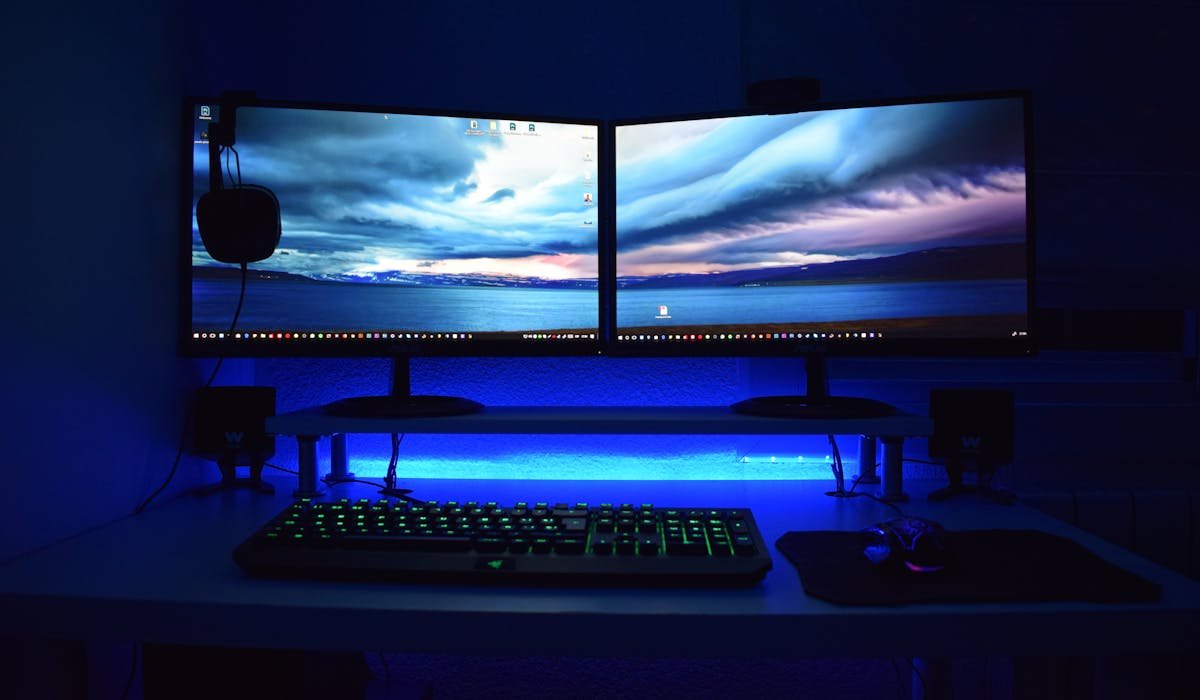
Going from one monitor to two is the single biggest productivity boost most people can give themselves. Code on one, browser on the other. Spreadsheet open while writing emails. Whatever your workflow is, dual monitors makes it 30-40% faster.
Here's the actual setup process, not just the basic plug-and-play.
Check your PC's video outputs
Most modern PCs and laptops support 2+ monitors. The question is what ports you have. Look at the back of your desktop or sides of your laptop.
Common ports:
- HDMI – on almost everything
- DisplayPort – on most desktops, some laptops
- USB-C / Thunderbolt – modern laptops and some desktops
- DVI – older systems
- VGA – very old, low quality
Match your second monitor's inputs to what your PC has. Adapters work too – USB-C to HDMI is the most common laptop solution.
Connect the second monitor
Plug both ends of the cable – one into your PC, one into the monitor. Power on the monitor.
Windows usually detects it within a few seconds. The desktop extends or duplicates automatically based on your last setting.
Configure monitor arrangement
Right-click your desktop > Display settings. You see boxes representing each monitor. The numbers tell you which is which.
Drag the boxes to match the physical arrangement. If monitor 2 is to the right of monitor 1, drag box 2 to the right of box 1. This way your mouse cursor flows naturally between screens.
Click Identify to flash big numbers on each monitor to confirm which is which. Click Apply.
Set the primary monitor
The primary monitor is where new windows appear by default and where the Start Menu lives. Click the monitor box you want as primary in Display settings. Scroll down. Check Make this my main display.
For most people, the larger or more central monitor should be primary. The other one becomes secondary for reference material, chat apps, etc.
Pick the right display mode
Press Windows + P to bring up the projection menu. Four options:
- PC screen only – second monitor off
- Duplicate – both monitors show the same thing
- Extend – desktop spans across both monitors
- Second screen only – laptop screen off, only second monitor works
For productivity, you want Extend. Duplicate is for presentations. Second screen only is for laptops you're using as a desktop with the lid closed.
Set matching resolutions and scale
Mismatched monitors can look weird if scale isn't adjusted. In Display settings, click each monitor and set the resolution to its native (usually the highest available).
Below resolution, set the Scale percentage. A 27" 4K monitor might need 150% scale to show text at the same size as a 24" 1080p monitor at 100%. Experiment until both look balanced.
Move windows between monitors fast
Useful keyboard shortcuts:
| Shortcut | What it does |
|---|---|
| Win + Shift + Left/Right | Move window to other monitor |
| Win + Left/Right | Snap window to half of current monitor |
| Win + Up | Maximize window |
| Win + Down | Minimize or restore |
| Win + Tab | Task View, see all open windows |
Learn these. Way faster than dragging windows manually between screens.
Set different wallpapers per monitor
Settings > Personalization > Background. Pick Picture. Right-click the image you want, pick Set for monitor 1 or Set for monitor 2. Each can have its own wallpaper.
Small touch but makes it visually clearer which monitor you're looking at. Good for differentiating work from personal contexts.
Pin the taskbar to one or both monitors
Windows 11 shows the taskbar on both monitors by default. To change, Settings > Personalization > Taskbar > Taskbar behaviors.
Toggle Show my taskbar on all displays off if you want it only on the primary monitor. Below that, set whether icons should appear on all taskbars or only where the windows are open.
Use a third monitor
Going past two monitors requires more graphics horsepower. Make sure your PC supports it – check spec sheet for max displays. Most modern GPUs handle 3-4 monitors fine.
If you run out of ports, use a USB docking station with multiple HDMI/DisplayPort outputs. CalDigit and Plugable make solid ones for $150-300.
What are you using your second monitor for? Drop your setup in comments. I'm curious how people split their work.