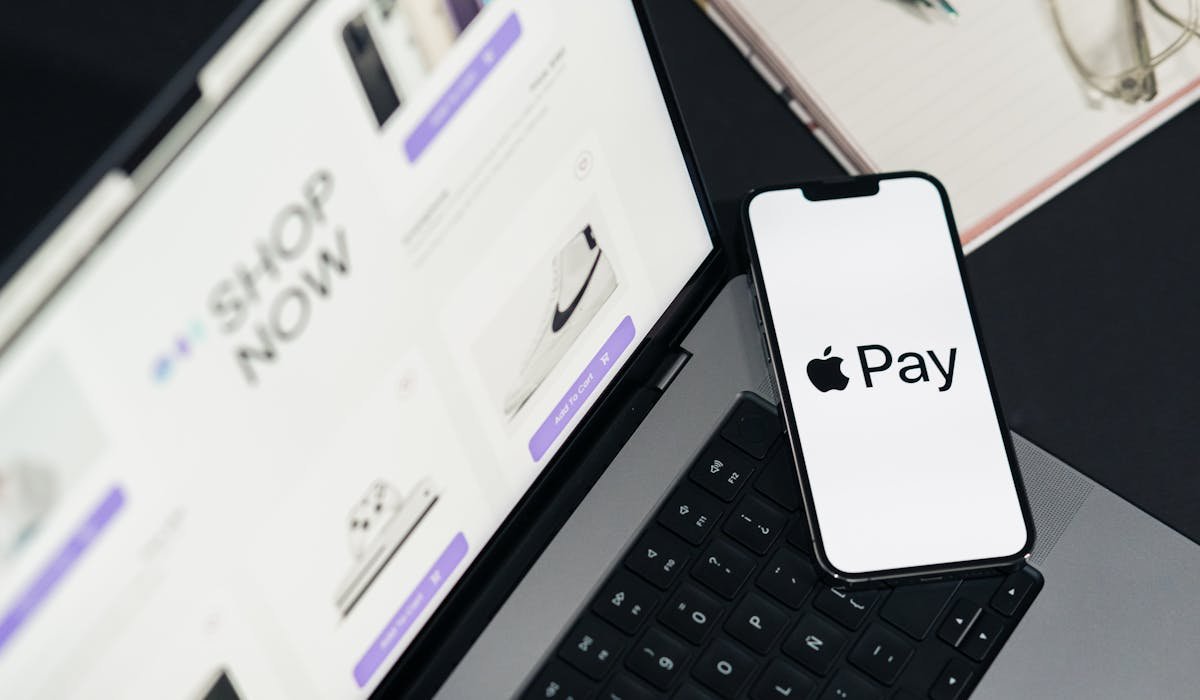
I've been using Apple Pay for everything since 2019. Cards, gym entries, transit, online shopping. The setup is one-time and after that it's faster than pulling out a wallet.
Here's the complete setup plus the lesser-known features most people miss.
Add a card to Apple Pay
Open the Wallet app on iPhone. Tap the plus icon in the top right. Pick Debit or Credit Card.
You can scan the card with your camera or type the details manually. Apple Wallet verifies with your bank, which might send a code via text or app. Enter the code. Card is added.
Most major US, UK, and European banks are supported. If yours isn't, Apple Pay won't work with it. Switch banks if it's important to you.
Pay at a store with Apple Pay
Two ways depending on your iPhone:
Face ID iPhones (X and later): Double-press the side button. Wallet opens with your default card showing. Glance at the phone for Face ID. Hold the phone near the payment terminal. Wait for the confirmation chime.
Touch ID iPhones: Hold the phone near the terminal. The phone wakes Wallet automatically. Press your finger on the Home button to authenticate. Done.
Change the default card
Add multiple cards then set one as default. Settings > Wallet & Apple Pay > Default Card. Pick whichever card you want to come up first.
You can also switch cards during a transaction. After Wallet pops up, tap the card image to see all your cards. Pick the one you want. Authenticate. Pay.
Pay online with Apple Pay
On Safari or any app that supports Apple Pay, look for the Buy with Apple Pay button at checkout. Tap it. Confirm with Face ID or Touch ID.
Way faster than typing card numbers and billing addresses. Apple Pay also masks your actual card number from the merchant, which is more secure than typing it.
Apple Pay on Mac and iPad
Apple Pay works on Mac and iPad too. On Mac, websites that support Apple Pay show a button. Click it – Touch ID on your Mac confirms the purchase.
Macs without Touch ID can still use Apple Pay but require your iPhone or Apple Watch to confirm. As long as you're signed into the same Apple ID, both devices can authenticate.
Same for iPad – websites in Safari work. Most iPad models use Touch ID (Air, mini) or Face ID (Pro).
Use Apple Pay on Apple Watch
Apple Watch makes Apple Pay even faster since you don't have to pull out your phone. Setup is through the Watch app on iPhone > Wallet & Apple Pay. Add cards from your phone.
To pay – double-press the side button on the Watch. Hold the Watch near the terminal. Feel the confirmation tap on your wrist.
Works anywhere contactless payment is accepted. Genius for transit since you tap your Watch on the reader without needing anything else.
Where Apple Pay is accepted
| Type | Acceptance |
|---|---|
| Major US retailers | 95%+ (Walmart added 2024) |
| Restaurants and cafes | Most that accept any contactless |
| Transit (NYC, London, Boston, more) | Tap and ride |
| Online stores | Hundreds of major retailers |
| Vending machines | If they have NFC |
If you see the Apple Pay logo or just the contactless symbol (wave icon), it works. Quick way to tell at the register.
Apple Cash for sending money
Apple Cash is Apple Pay's built-in money transfer feature. You send money via Messages. Open a chat, tap the apps icon, pick Apple Cash, enter an amount, send.
Recipient gets the money instantly. They can transfer it to their bank for free or use it in stores via their own Apple Pay. Works only between Apple users in the US.
Lost iPhone with Apple Pay cards
If your iPhone is lost or stolen, Apple Pay cards can't be used without Face ID, Touch ID, or your passcode. The cards aren't accessible to a stranger.
To be extra safe, log into iCloud.com > Find iPhone. Mark the device as lost. This suspends Apple Pay on it remotely. Even if someone unlocks the phone somehow, cards are locked.
Privacy and security
Apple Pay is actually more secure than handing over your card:
- Your real card number is never shared with the merchant
- A unique device-specific number is used instead
- Each transaction creates a one-time code
- Apple doesn't see your transaction history
- Merchants don't see your name or billing details unless you specifically share
Even card skimmers at gas stations don't capture your real number when you use Apple Pay – they get the device-specific code which is useless without your iPhone's authentication.
What stops you from using Apple Pay daily? Drop your hesitation in comments and I'll point to a solution.