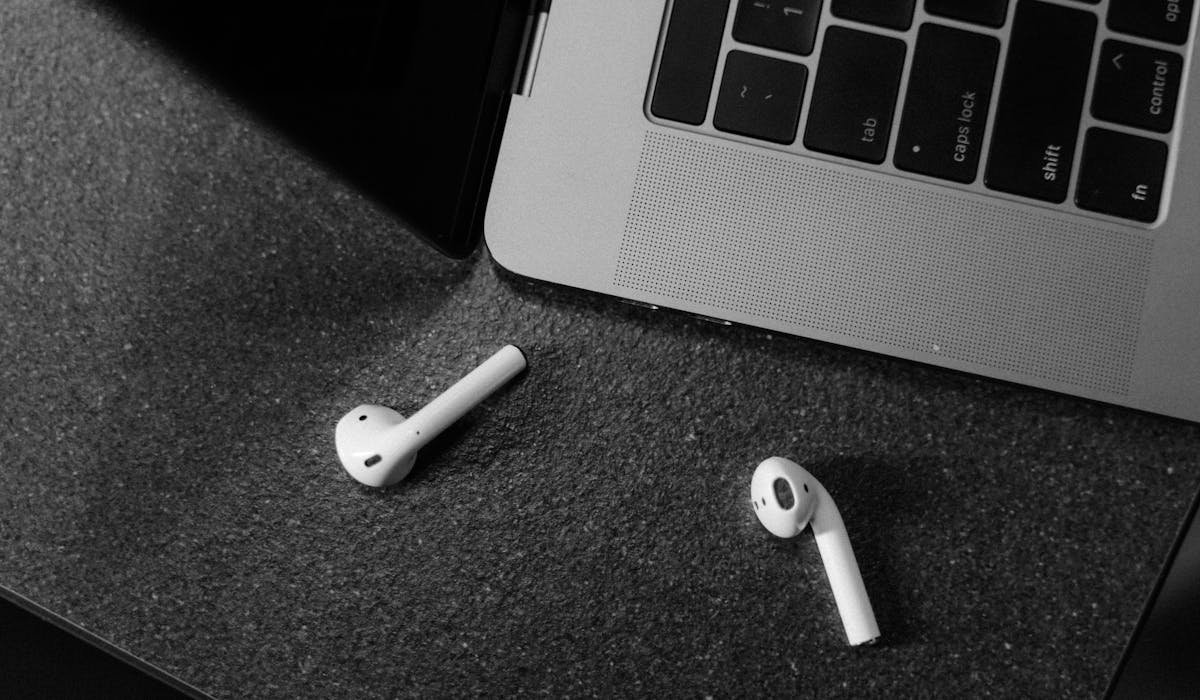
AirPods work great with Windows. Not as smooth as iPhone but pairing them takes about a minute. You lose the auto-pause and Siri features but get all the core audio.
Here's the proper pairing process plus what works and doesn't on Windows.
Pair AirPods to Windows 11
Put your AirPods in the case. Open the lid but keep them inside. Press and hold the small button on the back of the case for about 5 seconds until the LED flashes white.
On Windows – open Settings > Bluetooth & devices > click Add device. Pick Bluetooth. Your AirPods should appear in the list within a few seconds.
Click them. Windows pairs and connects automatically. The first time can take 15-30 seconds. The connection is now saved.
Set AirPods as audio output
After pairing, Windows might not automatically use AirPods. Click the volume icon in the taskbar. Click the small chevron next to the volume slider to see all output devices.
Pick your AirPods. Audio routes to them. To make this the default, right-click the volume icon > Sound settings. Under Output, pick AirPods.
Two profiles – Stereo and Hands-Free
Windows shows two devices for one set of AirPods:
- AirPods Stereo – high-quality audio output only, no microphone
- AirPods Hands-Free – lower-quality audio plus microphone
Use Stereo for music or movies. Use Hands-Free for calls or any time you need the microphone. Switch between them in Sound settings.
You can't have both at once. That's a Bluetooth limitation, not Windows-specific.
Reconnect AirPods next time
Once paired, AirPods should reconnect to Windows automatically when you open the case and they're in range. But sometimes you need to force it.
Open Bluetooth settings on Windows. Find your AirPods in the device list. Click Connect.
If the connection fails, open the case lid and tap one of the AirPods – that wakes them up. Try connecting again.
Things that work on Windows
Most features work:
- Audio playback at full quality (Stereo mode)
- Microphone input (Hands-Free mode)
- Pause/play with double-tap on AirPods (1st and 2nd gen)
- Press gestures on AirPods Pro stem
- Active Noise Cancellation toggle (AirPods Pro)
- Battery monitoring through third-party apps
Tap gestures work but might lag slightly compared to iPhone. ANC toggle requires you to set it up first while connected to iPhone, then it stays that way for Windows use.
Things that don't work on Windows
- Auto-pause when removing one AirPod
- Auto-connect when you put them in (you might need to manually connect)
- Siri (obviously – it's an Apple feature)
- Find My AirPods (also Apple-only)
- Spatial Audio for movies (some apps support, most don't)
- Battery widget in OS notifications
For battery monitoring, install MagicPods from Microsoft Store. Shows battery levels for both AirPods and the case.
AirPods sound quality on calls
This is the biggest weakness. Windows' Bluetooth Hands-Free Profile uses an outdated codec (SCO). Audio drops to maybe 8kHz which sounds like an old phone call.
For best call quality, use AirPods for output only (Stereo mode) and use your laptop's built-in microphone for input. Configure in Teams, Zoom, or Discord:
- Output – AirPods Stereo
- Input – Realtek Audio (or your laptop's built-in mic)
Hybrid setup. Best audio in your ears, best mic from the laptop.
If AirPods won't connect
Reset the AirPods. Put them in the case. Close the lid. Wait 30 seconds. Open the lid. Hold the button on back for 15 seconds until the LED flashes amber, then white.
That fully resets pairing. Pair fresh on Windows. Almost always works after this.
Also remove the existing pairing in Windows Bluetooth settings before doing the reset. Otherwise Windows might try to use the broken old pairing instead of letting you pair fresh.
Which AirPods model do you have? Different generations have slightly different behaviors on Windows.