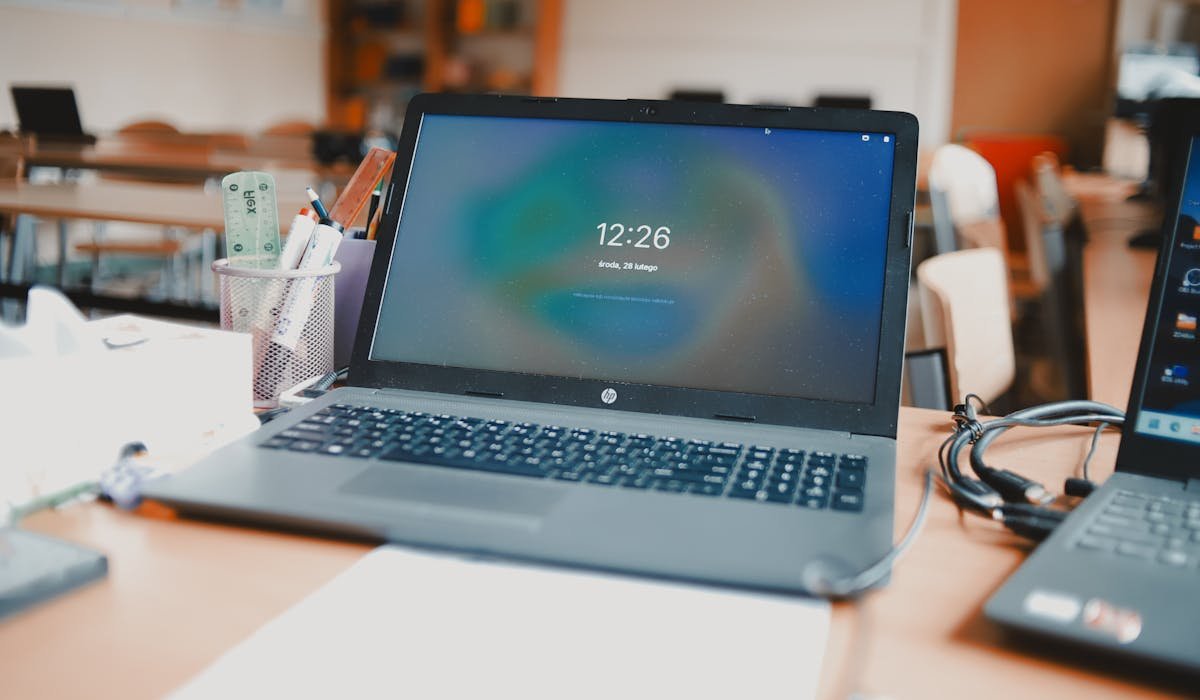
Chromebook apps come from three places. The Chrome Web Store (web apps and extensions), Google Play Store (Android apps), and Linux containers (for advanced users). Most people stick with web apps and Android apps. The right combination of apps turns a Chromebook from a basic browser machine into a real laptop.
I’ve used Chromebooks for years across daily work, travel, and casual computing. Tested a lot of apps. Some are great. Many are weak versions of their desktop counterparts. The list below sticks to apps that earn their place on the screen in 2026.
Best Productivity Apps
For document work, Chromebook excels because Google’s own tools run natively. Beyond Google Workspace, third-party productivity apps add specific strengths.
| App | What It Does Best |
|---|---|
| Google Docs/Sheets/Slides | Native, works offline, syncs everywhere |
| Microsoft 365 web | Free in browser, best for Office files |
| Notion (web app) | Faster than Android app on Chromebook |
| Todoist | Quick task capture and tracking |
| Trello | Project boards in browser |
Best Note-Taking Apps
Notes on Chromebook work best as web apps or PWAs. The native Google Keep is solid. Obsidian needs Linux mode for the desktop app, though the web version through Obsidian Sync also works.
Best Communication Apps
Slack, Zoom, Teams, Discord all work well on Chromebook through their web versions. The Android apps work but are sometimes slow on lower-end Chromebooks. The trick is using web for everything except video calls where the Android app sometimes handles screen sharing better.
- Slack web is the best Chromebook version. The Android app lags on weaker hardware.
- Zoom web handles most calls. Install Android app for screen sharing.
- Google Meet is native and integrated with Chromebook. No setup needed.
- WhatsApp Web requires QR code scan from phone but works perfectly after.
- Discord web app is solid for daily use.
- Microsoft Teams web works for meetings and chat.
Best Creative Apps
For creative work, Chromebook punches above its weight thanks to web-based design tools. Canva is the star for graphic design. Photopea is the surprise hero for photo editing because it runs full Photoshop-equivalent features in a browser.
| Tool | Use Case |
|---|---|
| Canva (web) | Graphic design, social media, presentations |
| Photopea | Free Photoshop alternative in browser |
| Pixlr X | Quick photo edits, lighter than Photopea |
| BandLab | Music creation in browser |
| Figma | UI and UX design, browser-based |
Best Streaming and Media
Netflix, Spotify, YouTube all work in browser on Chromebook. For offline downloads, the Android apps are the answer. Netflix Android lets you download for offline. Spotify Android does the same. Browser version is the better experience when online.
VLC works through Linux mode for advanced video playback that handles every format. For most users, the built-in Chromebook video player handles common files like MP4 and MOV without needing VLC.
Best AI Tools
AI tools shine on Chromebook because they’re mostly web apps anyway. Gemini comes built into newer Chromebook Plus models. ChatGPT, Claude, and Perplexity all work as web apps or PWAs.
| AI Tool | Why It Works on Chromebook |
|---|---|
| Gemini | Built into Chromebook Plus models |
| ChatGPT (web) | Full features, faster than Android app |
| Perplexity | Pin as PWA for native-app feel |
| Claude (web) | Best writing AI, browser-based |
| NotebookLM | Free research AI from Google |
Best Reading Apps
For ebooks, Kindle Cloud Reader works in any browser. Pocket and Feedly cover saved articles and RSS reading. For PDFs and longer reading, the browser handles most cases fine.
Best for Developers
Chromebook for developers improved dramatically with Linux mode. You can install VS Code, run terminal commands, use Git, deploy with Docker. Full development workflow possible on most modern Chromebooks.
| Tool | How to Install |
|---|---|
| VS Code | Linux mode, full functionality |
| Terminal | Built into Linux on ChromeOS |
| Git | Linux mode |
| GitHub web | Works perfectly, use github.dev for full editor |
| Caret | Native Markdown editor |
Apps to Skip
Some app categories aren’t worth installing on Chromebook. These specifically are usually worse than the web alternatives or simply don’t work well:
- Android apps marked may not work well in the Play Store. The warning is accurate.
- Heavy gaming apps. Chromebook hardware varies a lot. Stick to GeForce Now or cloud gaming for serious games.
- Antivirus apps. ChromeOS is sandboxed enough that third-party antivirus is unnecessary.
- System cleaner apps. They do nothing useful on ChromeOS.
- Apple-only apps like iMessage, FaceTime, Apple Notes have no Chromebook equivalent.
Pro Tip: Use PWAs Wherever Possible
Many web apps support Progressive Web App (PWA) install. Tap the install icon in the Chrome address bar. The app runs in its own window like a real app. Lighter and faster than Android equivalents on most Chromebooks. Twitter, YouTube, Notion, ChatGPT all work as PWAs and feel like native apps.
Final Thoughts
The best Chromebook apps in 2026 are mostly web apps and PWAs. Android apps fill the gaps but install one only if the web version is missing a feature you need. For developers, Linux mode unlocks full VS Code and terminal workflow.
What’s your must-have Chromebook app? Drop your favorite hidden gem in the comments.