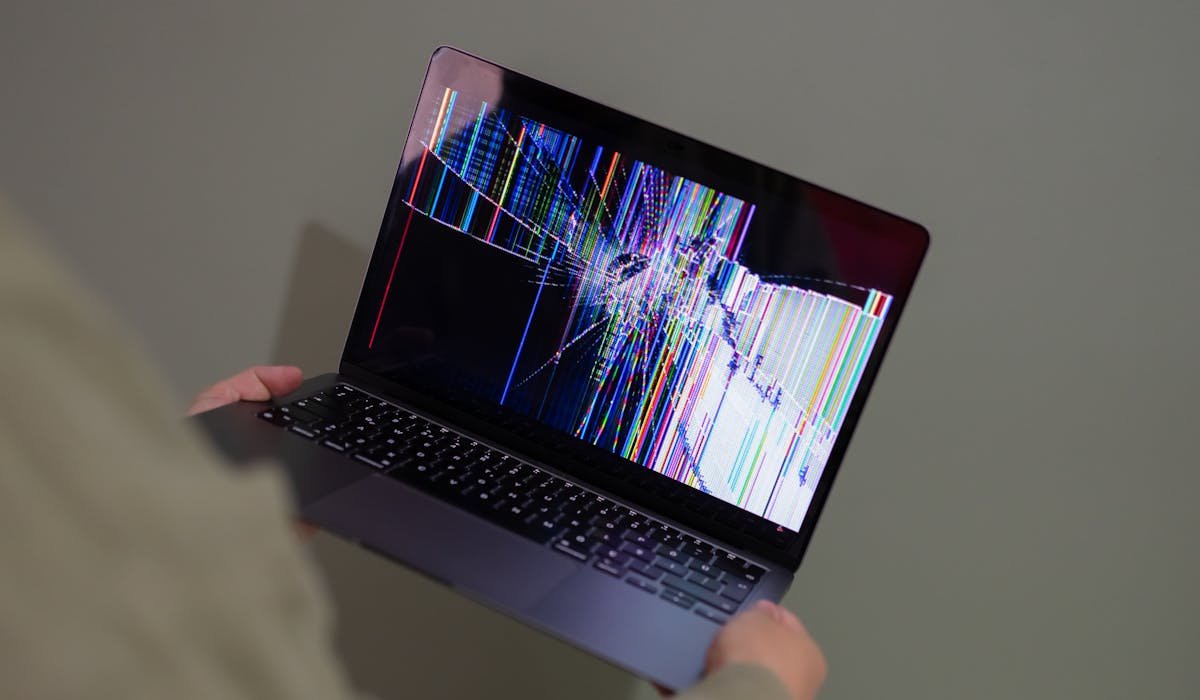
Green screen on a laptop is rare but terrifying. The first time I saw it I thought my screen was done for. Turns out 70% of these cases are software fixable. The other 30% need hardware help.
Here's how to figure out which side your case is on and what to do about each.
Boot in Safe Mode first
Safe Mode disables third-party drivers and uses a basic display driver. If the green screen disappears in Safe Mode, the issue is software.
To enter Safe Mode on Windows 11 – hold Shift while clicking Restart in the Start menu. The recovery menu loads. Pick Troubleshoot then Advanced options then Startup Settings then Restart. Press 4 for Safe Mode.
If the screen is normal in Safe Mode, you know the issue is a driver. Now you can fix it confidently.
Update or roll back graphics drivers
While in Safe Mode (or in normal mode if it's usable), open Device Manager (right-click Start). Expand Display adapters. Right-click your GPU and pick Update driver.
If updating doesn't help or made it worse, right-click again, pick Properties, then the Driver tab. Click Roll Back Driver to go back to the previous version. Restart.
Check the screen cable connection
Most laptop green screens come from a loose screen cable inside the lid hinge. Open and close the laptop slowly. If the green tint changes or disappears at certain hinge angles, the cable is loose.
Plug an external monitor into the laptop. If the external monitor shows a clean picture, the laptop's built-in screen or its cable is the problem. The GPU is fine.
Run video playback tests
Play a YouTube video at full screen with the green tint visible. Does the tint stay constant or move with the video? Constant means the screen itself has a color issue. Moving means a software rendering problem.
Try playing the same video in different apps – Chrome, Edge, the Windows Media Player, VLC. If only one app shows green, that app's renderer is broken. If all show green, the issue is system-wide.
Disable hardware acceleration in your browser
If the green only appears in browsers, hardware acceleration is the culprit. Open Chrome and go to chrome://settings/system. Toggle off Use hardware acceleration when available.
Restart Chrome. Test again. Same fix works in Edge and Firefox – look for hardware acceleration in their advanced settings.
Check color calibration
Sometimes Windows color profiles get corrupted and tint everything. Open Settings > System > Display > Advanced display. Scroll down and click Display color profile.
Look at the active profile. If it's anything other than the default for your monitor, switch to the default. Or click Calibrate display at the bottom to walk through Windows' color setup wizard.
Test for stuck pixels
Some pixels can get stuck on green. Visit screenburninfix.com or similar dead pixel tests. The site cycles through solid red, green, blue, and white screens.
If you see green dots that shouldn't be there during the red, blue, or white screens, those pixels are stuck. Software can sometimes unstick them – JScreenFix.com runs an algorithm that may unstick pixels by rapidly cycling colors.
Hardware fixes – the real cost
If software didn't help, hardware is involved. Common hardware causes and costs:
| Issue | Approximate cost |
|---|---|
| Loose display cable | $80-150 repair shop |
| Failed display panel | $200-500 replacement |
| Damaged GPU on motherboard | $300-1000 (often more than the laptop) |
| Failed dedicated GPU card | $150-400 |
For a 5+ year old laptop, GPU repairs aren't worth it. Cheaper to buy a new one. For newer laptops or premium models like MacBook Pros, repair is usually fine.
What laptop model are you working with? Drop the brand and model and I'll mention any known green screen patterns.