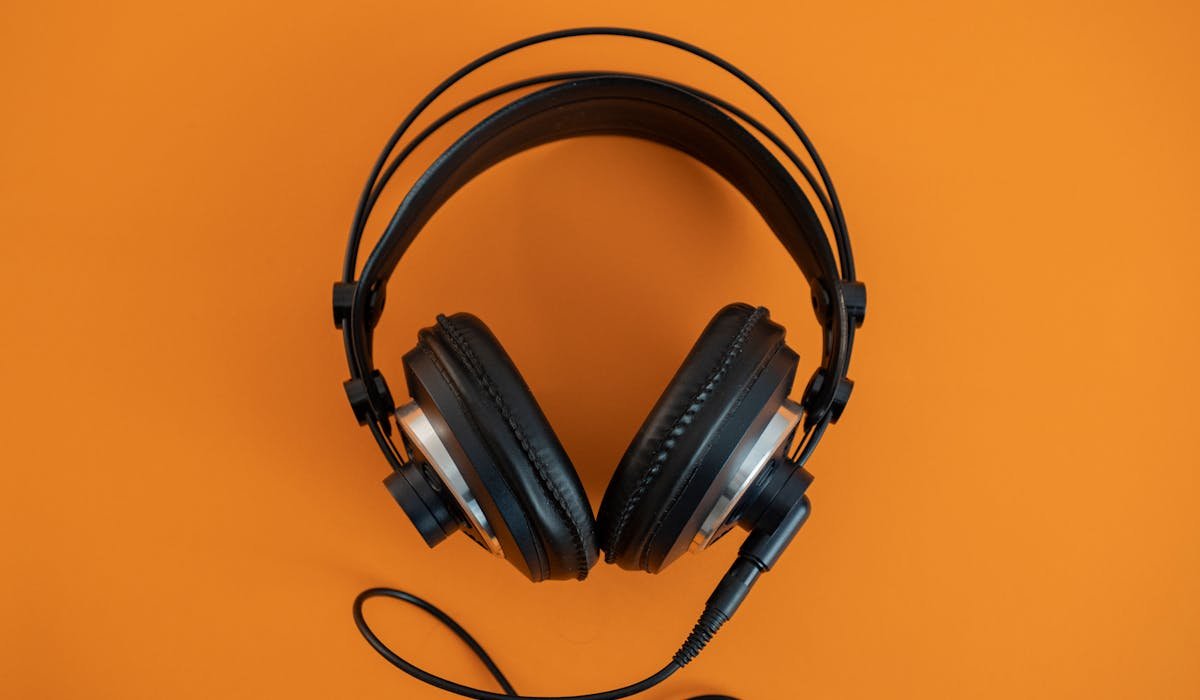
AirPods Max don't have a power button. That confused me when I first got them. The headphones rely on smart sensors to know when you're wearing them or not. There's a workaround if you really want them fully off.
Here are the three ways to handle this – the official way, the case method, and the full power-off trick.
Take them off and let auto-pause handle it
The intended behavior – you take the headphones off, sensors detect they're not on a head, and they enter low-power mode within 2 minutes. Audio pauses immediately. The battery drains slowly while in this state.
This is what Apple wants you to do. It's simple but the headphones still use battery in standby. Not a lot – maybe 5-10% per day of inactivity. Enough to be annoying if you don't use them for a week.
Put them in the Smart Case
The Smart Case (the weird bra-shaped one Apple ships with the headphones) triggers a deeper sleep mode. Put the AirPods Max in the case and within 15 seconds they enter Ultra Low Power Mode.
In Ultra Low Power Mode, the battery drain drops to almost zero. They'll hold a charge for weeks. The case is the closest thing to a power button these headphones have officially.
Force a hard reset for a true off state
If you want them completely off (like if you're putting them away for a month), you can force a deep shutdown. Hold the Noise Control button and Digital Crown together for 10-15 seconds.
The LED flashes amber then off. The headphones are now fully powered down. They'll re-pair to your iPhone automatically next time you put them on. No re-setup needed.
What each power state looks like
| State | Trigger | Battery drain |
|---|---|---|
| Active | Wearing them, audio on | ~5% per hour |
| Standby | Off your head, not in case | ~5-10% per day |
| Ultra Low Power | In Smart Case for 72 hours | Negligible |
| Hard Off | Manual reset combo | None |
For daily use, the standby state is fine. The case adds nothing during regular use. The hard off only matters for long-term storage.
Why this design choice?
Apple removed the power button to keep the AirPods Max minimal. The Digital Crown handles volume and pausing. The Noise Control button toggles ANC and Transparency. Adding a third button would clutter the design.
The sensors approach works fine in practice. Most people just take them off and that's enough. The standby drain is small enough that most users never notice it.
Battery indicator and management
Check battery status by opening the case lid (with the AirPods inside) near your iPhone. A widget pops up showing the percentage. Or add the Batteries widget to your iPhone Home Screen for at-a-glance status.
The headphones charge from a Lightning to USB cable. A 15-minute charge gives you about 1.5 hours of playback. Full charge takes about 90 minutes. They use the standard Lightning cable for now, not USB-C (Apple may switch this in a future revision).
When to actually do the hard off
Situations where the manual reset is worth doing:
- Storing them for more than 2 weeks unused
- Flying with them in checked luggage (rules differ but better safe)
- The headphones are stuck on or unresponsive and need a power cycle
- Battery indicator is showing weird percentages
- Selling them and want to do a complete reset
For everyday use, just take them off and pop them in the case. That's the path Apple optimized for and it works well.
Anyone's AirPods Max draining battery weirdly? Tell me your symptoms and I'll point to a fix.