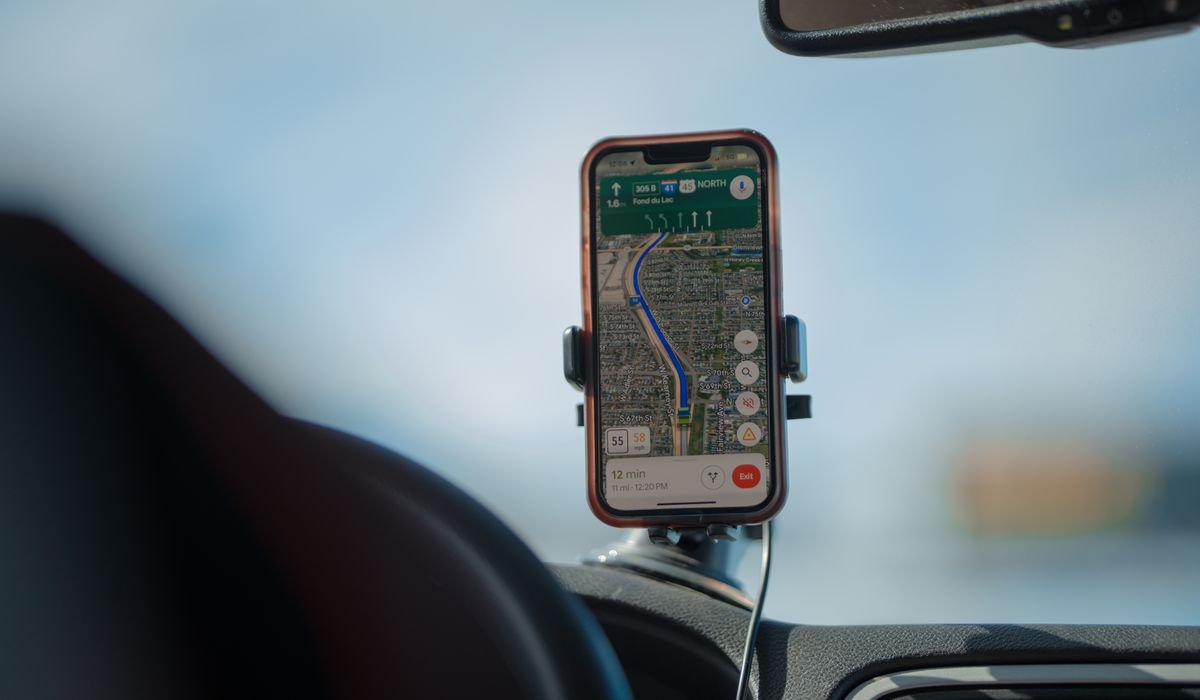
CarPlay turns your car's screen into an iPhone extension. Maps, music, messages, calls. All running through your phone but displayed on the dashboard. Setting it up is easy once you know which kind of CarPlay your car supports.
Two flavors – wired CarPlay (USB cable) and wireless CarPlay. Most cars from 2020 onwards support wireless. Older models need a cable.
Set up wired CarPlay
Plug your iPhone's USB cable into the USB port marked with a CarPlay icon (a phone with arrows, usually). The car screen should detect the iPhone within 10 seconds and prompt you to enable CarPlay.
Tap Allow CarPlay on the iPhone. The car screen switches to the CarPlay interface. You see apps like Maps, Phone, Messages, Music, and any third-party apps you have with CarPlay support.
Set up wireless CarPlay
Wireless needs an initial pairing. Once that's done, your iPhone connects automatically every time. Here's the first-time setup:
- Start the car and put the screen in pairing mode (varies by car)
- On iPhone, go to Settings then General then CarPlay
- Tap Available Cars and pick your car's name
- Confirm pairing on both the phone and the car
- Wait a few seconds for CarPlay to launch
Different cars enter pairing mode differently. BMW uses a Bluetooth menu. Tesla doesn't support CarPlay at all (yet). Ford and Chevy have a CarPlay setup wizard. Check your car's manual if you're stuck.
Does your car support CarPlay?
Apple maintains a list at apple.com/ios/carplay/available-models. Quick reference for major brands:
| Brand | CarPlay support |
|---|---|
| Toyota | 2018+ models, mostly wireless 2021+ |
| Honda | 2017+, wireless on newer trims |
| Ford | 2017+, SYNC 3 and SYNC 4 |
| Chevy / GMC | 2017+, MyLink infotainment |
| BMW | 2017+, mostly wireless |
| Tesla | Not supported |
| Mazda | 2018+ all trims |
If you have a car that doesn't support it natively, aftermarket head units from Pioneer, Sony, and Kenwood add CarPlay for around $300-$600 installed.
Choose what shows on the CarPlay home screen
You can customize which apps appear and where. Open Settings on your iPhone, go to General then CarPlay, pick your car, then tap Customize.
Drag apps up or down to reorder. Tap the minus icon to remove an app from the CarPlay home screen. Apps you remove still exist on your phone but won't show on the car display.
CarPlay not connecting?
Common reasons CarPlay refuses to launch:
- Siri is disabled – CarPlay needs Siri enabled to function
- You're using a non-MFi (Made for iPhone) cable
- The USB port doesn't support data transfer (some are charge-only)
- iOS or the car's firmware needs an update
- CarPlay restriction is on in Screen Time
Check those. The cable one catches people most often. Apple's included Lightning cable always works. Cheap aftermarket cables sometimes don't have the right chip for CarPlay handshaking.
Use Siri while driving
The point of CarPlay is hands-free control. Hold the voice button on your steering wheel for 2 seconds and Siri activates. Just say what you want – "navigate to home", "call mom", "play my workout playlist".
If "Hey Siri" is enabled, you don't even need the button. Just say it. The phone has to be charging in the car for "Hey Siri" to work on all models reliably.
What car are you trying to set up CarPlay on? Drop the year and model and I'll mention any quirks.